
How to manage construction change orders and ÄTA work in Odoo
Updated
What standard Odoo offers
- Sales quotes and invoices extra work like any other order, as a separate quotation or as extra lines on the original order.
- Online signature lets the customer accept a quotation in the customer portal.
- Project holds the job, its tasks and timesheets.
- No change order record. Nothing ties a change's scope, its reason, the customer's approval and its invoicing status together, so there is no list of approved extra work that hasn't been invoiced.
The usual workaround
Create a separate quotation for each change and put the change number in the customer reference. Keep the customer's approval email in the chatter and a list of changes per project in a spreadsheet. To find approved extra work that hasn't been billed, compare that list with sales orders and invoices by hand. If the lines go onto the original order instead, the change disappears into the contract total.
Change orders with ScopePay
- Install Karelia ScopePay on Odoo.sh or your own server (Odoo 18, 19 or 20). Odoo Online can't install custom apps. Give each user the Prepare or Approve role.
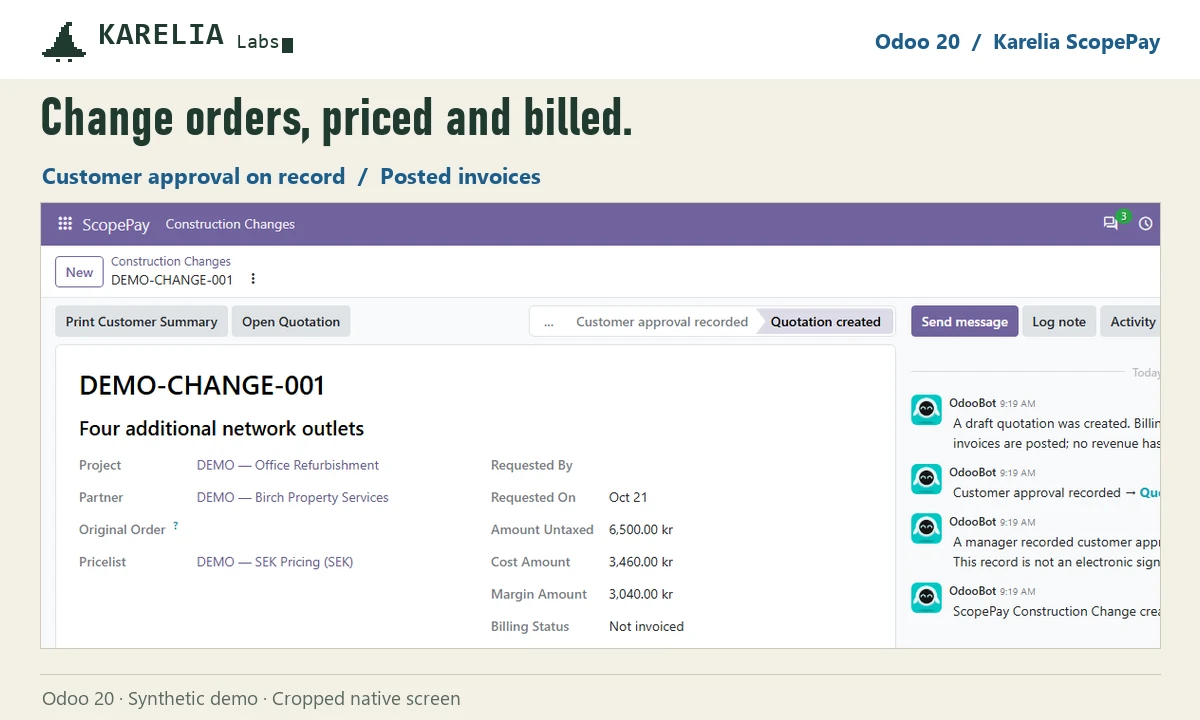
- Open ScopePay / Construction Changes and create a change: project, customer, original sales order, pricelist, and a description of what changed and why it is outside the agreed scope.
- Add priced lines for hours, material and other costs, each with a product invoiced on ordered quantities, a quantity, an estimated unit cost and a customer price. Lines can also be imported from a CSV file. The change shows the proposed amount, estimated cost and margin.
- Submit it for internal review. The lines are frozen, and a user with the Approve role approves the change.
- Print the customer summary, which leaves out internal cost and margin, and get the customer's approval the way you usually do. Then record it on the change: who approved, the date and the attachment, such as the approval email or a signed PDF.
- Create the draft quotation. It is created once from the approved lines, and you confirm and invoice it in Sales as usual.
See what has been billed
Each change shows its posted invoices less posted credit notes, excluding tax, and a billing status: not invoiced, partly invoiced, invoiced or paid. A quotation or a draft invoice never counts as billed. The Quoted, Not Invoiced filter lists changes that have a quotation but no posted invoice, and the pivot view compares proposed value, estimated cost and posted invoicing per project.
ÄTA work
In Swedish construction, changed, added and removed work is called ÄTA (ändrings-, tilläggs- och avgående arbeten). ScopePay records the scope, pricing and customer approval for each ÄTA change. Whether the contract entitles you to payment, and which notices it requires, is still decided by your team.
ScopePay records an approval you already have. It has no e-signature and does not interpret construction contracts.
FAQ
Can standard Odoo track change orders?
Partly. You can quote and invoice extra work with a separate quotation or extra order lines, but there is no change order record that keeps the scope, the customer's approval and the invoicing status together.
Can ScopePay handle removed work (avgående arbeten)?
Not as a negative change. Scope lines need a positive quantity and a price of zero or more. Work removed from the contract is adjusted on the original order or with a credit note in normal invoicing.
Is a quotation counted as billed?
No. Only posted invoices count, and posted credit notes reduce the amount.
More guides
Så exporterar du närvaro från Odoo till PAXml för lönesystemet
Swedish PAXml Export bygger en PAXml 2.0-fil av Odoos närvaro, godkända frånvaro och utlägg. Någon granskar raderna och låser underlaget innan .pax-filen laddas ned och importeras i lönesystemet.
Read the guide →How to charge late payment interest in Odoo
Odoo sends payment reminders but does not calculate interest on overdue invoices, in any version up to 20. Statutory interest follows a half-year reference rate, changes with every partial payment and allows one fixed compensation per late business invoice. You can calculate it by hand on a separate invoice, or let LateRate do it from your posted invoices.
Read the guide →Expense reports are gone in Odoo 19 and 20: how to group expenses again
Since Odoo 19 every expense is submitted, approved, posted and paid on its own; the Create Report button and the Expense Reports menu are gone in 20 too. To bill a client for several receipts, use re-invoicing through a sales order. To approve, print and pay a month of expenses as one report again, add Expense Report Sheets.
Read the guide →