
How to manage supplier stock rotation returns in Odoo
Updated
What standard Odoo offers
- Purchase reporting shows what you bought from a vendor in a period.
- Returns: the Return button on a receipt creates a return transfer to the vendor.
- Vendor credit notes record what the supplier credits back.
- Nothing turns past purchases into a return allowance, checks which lots the agreement covers, or shows a return that was never credited.
The usual workaround
Export the vendor bills for the earning period, subtract the credit notes, apply the percentage and keep the allowance in a spreadsheet. Pick slow-moving lots, check that they are in scope and still sealed, ask the supplier for a return authorization and ship from the original receipt. Then watch for the credit note and tick it off by hand. Non-returnable items slip in, the same allowance gets used twice, and a shipped return that was never credited is easy to miss.
From allowance to credit in Odoo
- Install Karelia RotateGuard on Odoo.sh or your own server (Odoo 18, 19 or 20).
- A manager sets up an allowance window under RotateGuard / Allowance windows: supplier, earning period, claim window, percentage, covered and excluded products, maximum receipt age and the days you have to ship after authorization. Purchase order lines can also be marked as non-returnable (NCNR).
- The manager then reviews the purchase basis. Posted vendor bills less credit notes for the covered products in the earning period, untaxed, give the basis; the percentage gives the allowance, with what is reserved and what remains.
- In a rotation request, add receipt lots with their posted bill lines and confirm that each lot is sealed and resaleable. While the claim window is open, submitting checks product scope, receipt age, unreserved stock at the receipt location and the remaining allowance.
- A manager records the supplier's authorization reference and date. The send-by deadline follows, and Prepare warehouse return creates the return transfer with the lots for the warehouse to validate.
- Allocate the posted supplier credit note lines. Each request shows the returned, credited and still-uncredited amounts, and a return without a credit stays open.
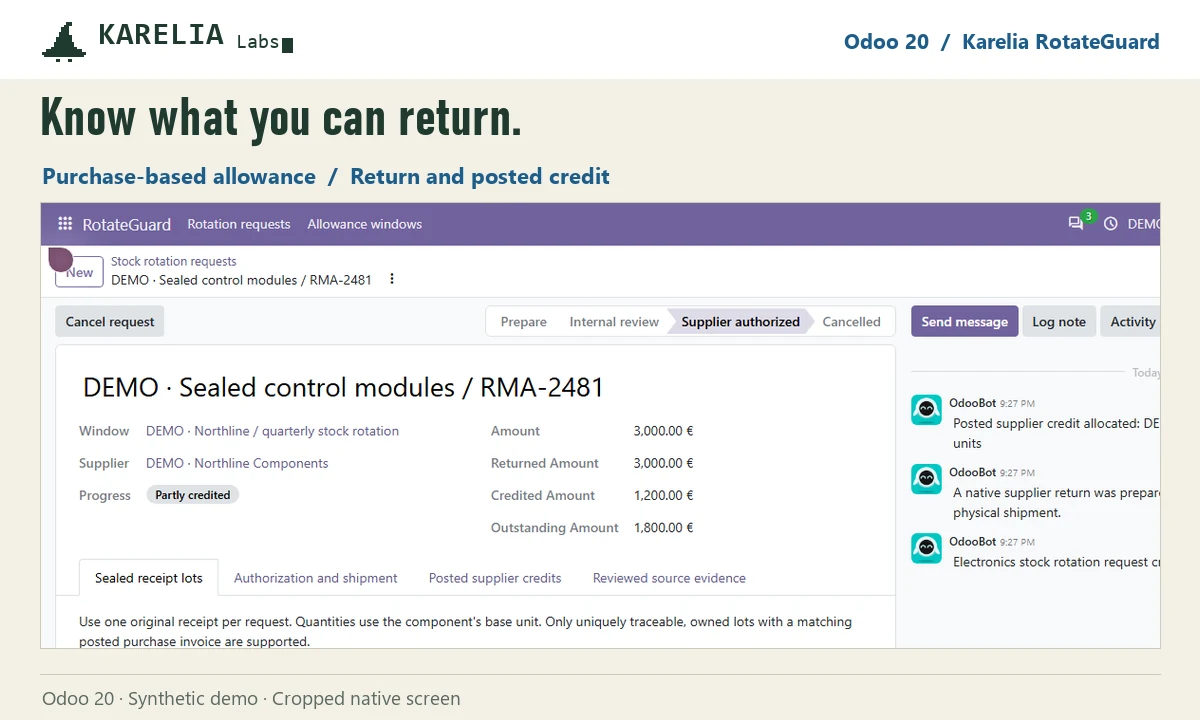
RotateGuard handles percentage-of-purchases terms in one currency, for lots with a single original receipt that are still at their receipt location. It records the supplier's authorization; your agreement decides what the supplier accepts.
FAQ
Can Odoo calculate a stock rotation allowance?
Not in standard Odoo. Purchase reports show what you bought, but nothing applies the agreed percentage or tracks the claim window.
Is stock rotation the same as a normal supplier return?
No. A normal return is for specific goods, often faulty ones. Stock rotation sends back saleable stock against an allowance earned from past purchases, within a set window.
Does a shipped return count as credited?
No. RotateGuard keeps the physical return and the posted credit note apart, so a return still waiting for its credit stays visible.
More guides
Så exporterar du närvaro från Odoo till PAXml för lönesystemet
Swedish PAXml Export bygger en PAXml 2.0-fil av Odoos närvaro, godkända frånvaro och utlägg. Någon granskar raderna och låser underlaget innan .pax-filen laddas ned och importeras i lönesystemet.
Read the guide →How to charge late payment interest in Odoo
Odoo sends payment reminders but does not calculate interest on overdue invoices, in any version up to 20. Statutory interest follows a half-year reference rate, changes with every partial payment and allows one fixed compensation per late business invoice. You can calculate it by hand on a separate invoice, or let LateRate do it from your posted invoices.
Read the guide →Expense reports are gone in Odoo 19 and 20: how to group expenses again
Since Odoo 19 every expense is submitted, approved, posted and paid on its own; the Create Report button and the Expense Reports menu are gone in 20 too. To bill a client for several receipts, use re-invoicing through a sales order. To approve, print and pay a month of expenses as one report again, add Expense Report Sheets.
Read the guide →