
Chatwright: read, search and save the Skype chat history you exported, with your photos in place
Skype has closed, and the chat history people downloaded from it is a .tar file with messages.json inside: years of conversations with family and friends in a file that is hard to read.
For Windows 10 (version 2004 or later) and Windows 11, 64-bit. Works offline, with no account.
- Price
- $4.99 in the Microsoft Store
- Opens
- Skype's export (.tar), an unpacked export folder, messages.json, or main.db from the classic Skype for Windows
- Saves
- Web page (HTML), PDF, text, CSV and JSON, and the photos and files of the exported conversations
- Needs
- PDF export uses the Microsoft Edge WebView2 Runtime, included with Windows 11 and installed on most Windows 10 PCs. Everything else works without it.
- Windows
- Windows 10 version 2004 (build 19041) or later, or Windows 11, 64-bit (x64). About 200 MB of disk space.
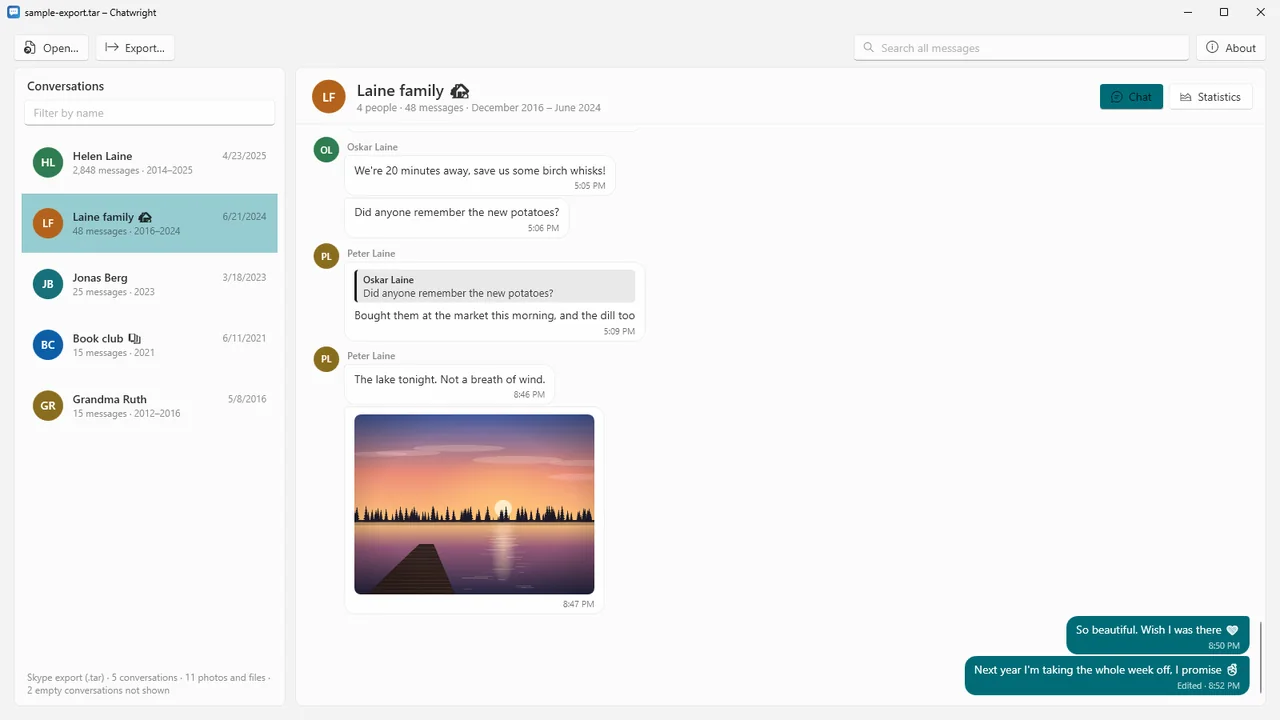
Chatwright opens that export as it is, without unpacking, and shows each conversation the way you remember it: names, times, replies, photos and the little faces you sent each other. It also opens an unpacked export folder, messages.json on its own, and main.db from the classic Skype for Windows.
Search every conversation at once, see statistics, and keep your history in a form that lasts: a web page, PDF, text, CSV or JSON. Everything happens on your own PC.
What Chatwright does
Opens the export as it is
The .tar file from Skype's export, with no need to unpack it. Also an unpacked export folder, messages.json on its own, or main.db, the database file of the classic Skype for Windows.
Reads like a chat
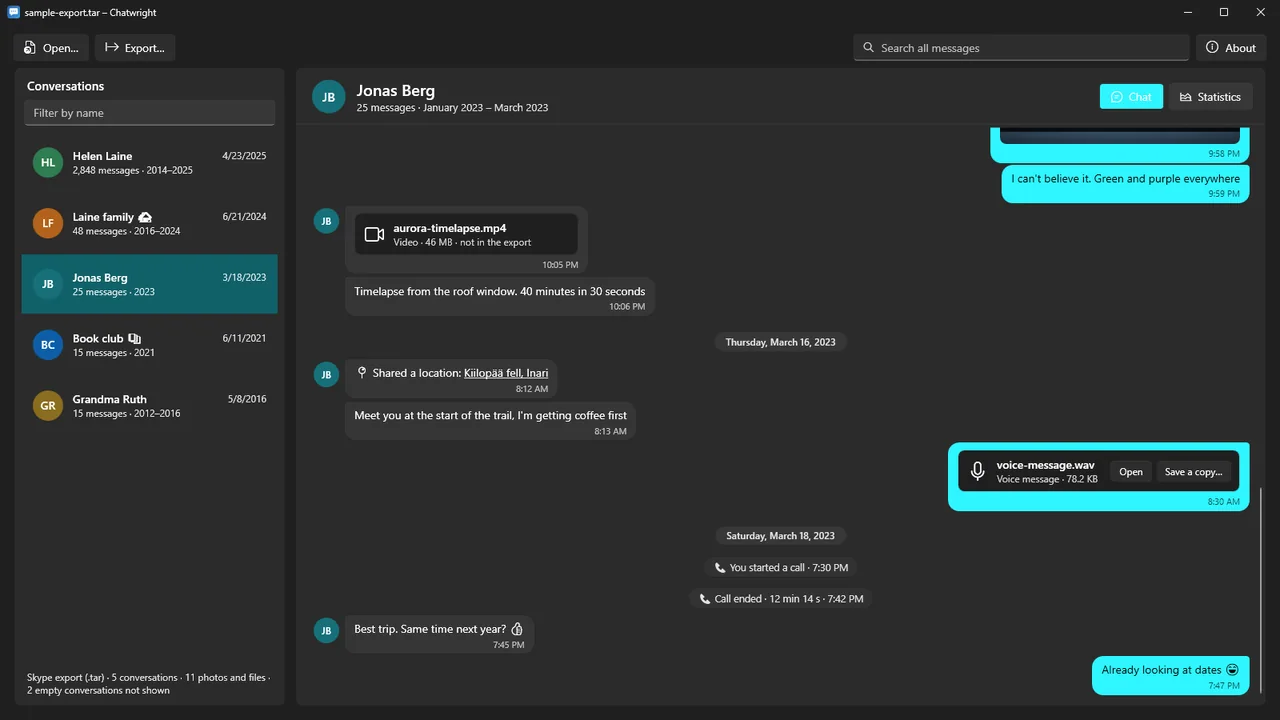
Your messages on the right, everyone else's on the left, a separator for every day, replies with the message they quote, "Edited" next to edited messages and a note where one was deleted. Calls, missed calls and group changes in plain words; emoticons as emoji.
Photos in place
Photos that are in the export appear in the chat; click one to see it full size. Videos, voice messages and files show their name and size, and Chatwright tells you when a file was not included in the export.
Search everything
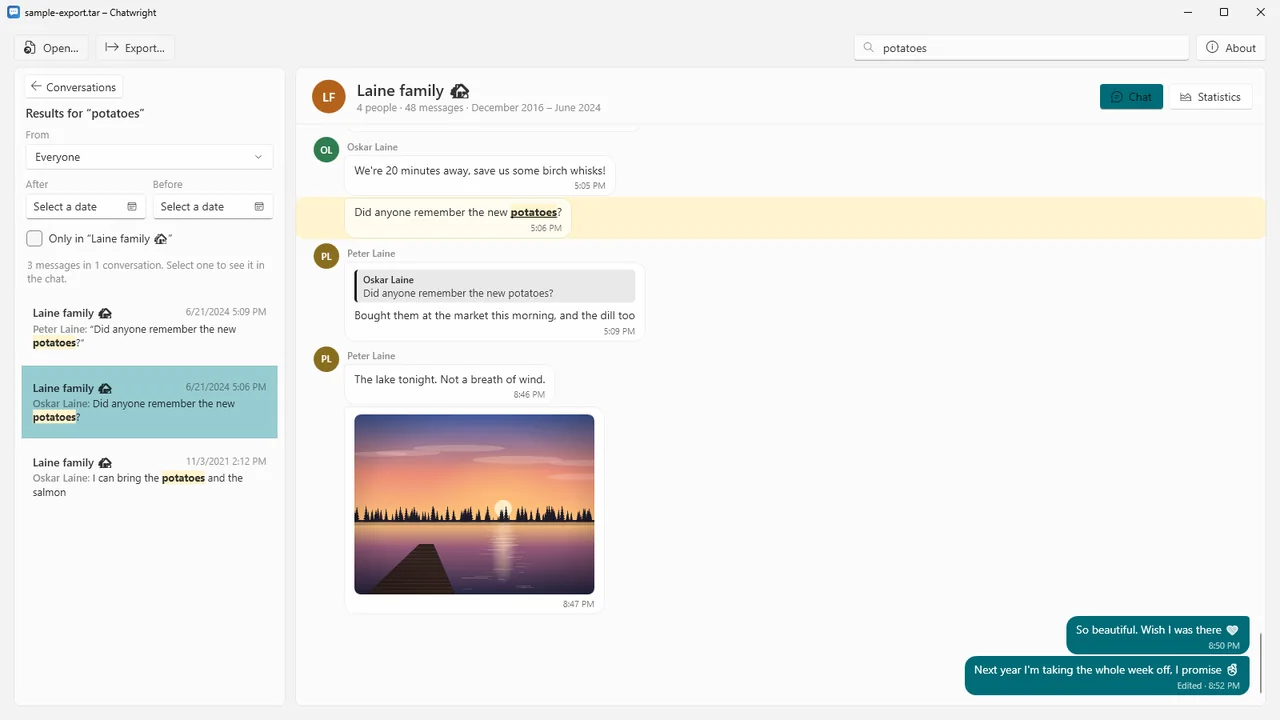
Search every conversation at once, narrow it to one person, dates or the conversation you are reading, then jump to the message with your words highlighted.
Keep it in a form that lasts
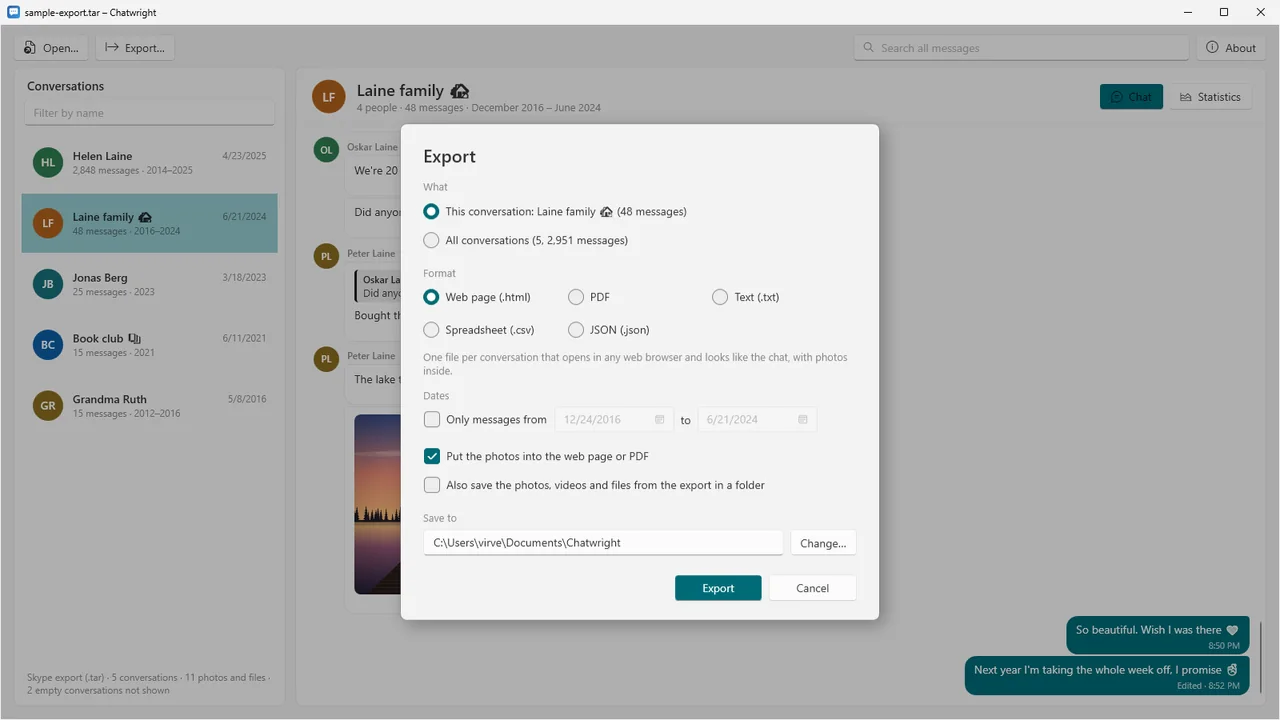
Export one conversation or all of them as a web page that opens in any browser with the photos inside, a PDF ready to print, plain text, a CSV table for Excel, or JSON. Only the messages between two dates if you like, with the photos, videos and files saved into a folder.
Statistics
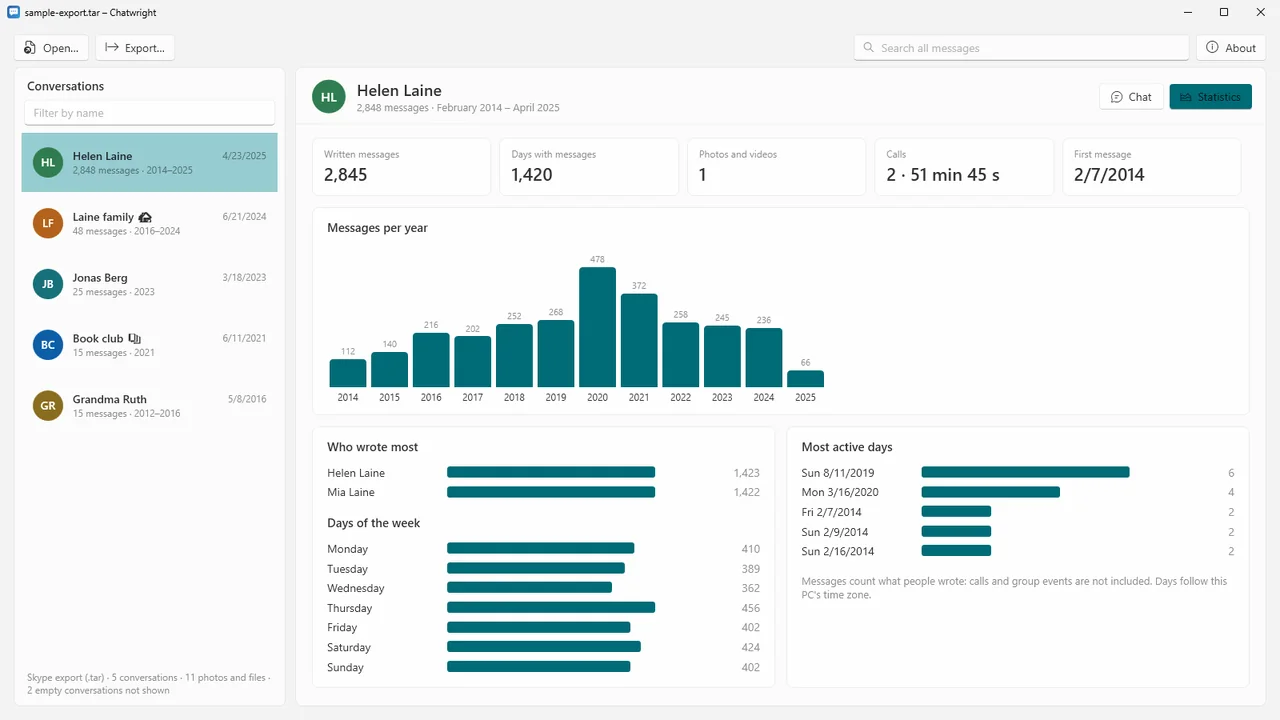
For each conversation: how many messages you wrote each year, who wrote most, the days of the week you talked most and your busiest days.
Large exports
Chatwright reads the export as it goes instead of loading it all at once, and opens each conversation only when you read it.
Your files never change
The export is only read, and nothing is ever overwritten when saving. No account, no tracking, no update checks.
How it works
- Open your export. Open the .tar file you downloaded from Skype (Ctrl+O), or drop it on the window. No unpacking needed.
- Read and search. Pick a conversation from the list, with its message count and years, or search all of them (Ctrl+F).
- Save it. Export a conversation or everything (Ctrl+S) as a web page, PDF, text, CSV or JSON.
Screenshots
Pricing
Chatwright for Windows 10 and 11, 64-bit.
Good to know
- Chatwright opens an export you already have. It does not connect to Skype or Microsoft and cannot download your history.
- It shows what is in the export: a photo, video or file that the export does not include cannot be shown, and Chatwright marks it instead of leaving a gap.
- No real Skype export was available to us. Chatwright was tested with exports we built to the structure of Skype's export as it is publicly described, including a large one with 200,000 messages.
- PDF export needs the Microsoft Edge WebView2 Runtime, included with Windows 11 and installed on most Windows 10 PCs.
Privacy
Chatwright does not collect, store or send any personal data. It works entirely offline: it makes no network connections, has no account, no analytics or telemetry, and does not check for updates. The chat history you open is read only on your PC and is never changed. Files Chatwright saves go only to the folder you choose.
To keep your settings (such as the last export folder) and a technical log for troubleshooting, Chatwright writes small files to %LOCALAPPDATA%\Karelia Labs\Chatwright on your PC; the log contains file names and error messages, never the contents of your messages. Copies of photos or files you choose to open are placed in your temporary folder and removed when Chatwright closes. Questions: support@karelialabs.com.
Guides
FAQ
Do I need to unpack the .tar file first?
No. Chatwright opens the .tar file from Skype's export as it is. It also opens a folder you already unpacked it into, or messages.json on its own.
Can it get my history from Skype?
No. Chatwright reads an export you already downloaded, or main.db from the classic Skype for Windows. It makes no network connections.
Will I see my photos?
Photos that are in the export appear right in the chat, and a click shows them full size. When a file was not included in the export, Chatwright says so.
How do I keep my chats for good?
Export one conversation or all of them as a web page that opens in any browser, with the photos inside, or as a PDF ready to print. Text, CSV and JSON are there too.
Does anything leave my PC?
No. Chatwright works offline, has no account and no tracking, and only reads your export.
Related tools
Inboxwright
Open Outlook .pst and .ost files without Outlook: read mail with remote content blocked, search, save attachments, export to EML, MBOX or PDF. Offline.
Stepwright
A steps recorder for Windows: every click becomes a numbered step with a screenshot and a plain sentence. Tidy up, then export to Word, PDF, HTML or Markdown.
More from Karelia Labs
Updated