
Stepwright: record clicks as numbered steps with screenshots, then export to Word, PDF, HTML or Markdown
Writing instructions, a bug report or a support answer means taking screenshots and describing every click. Stepwright does that while you work.
For Windows 10 (version 2004 or later) and Windows 11, 64-bit. Works offline, with no account.
- Price
- $12.99 in the Microsoft Store
- Exports
- Word (.docx), PDF, single-file HTML, and Markdown with an images folder
- Saves
- Recordings as .stepwright files
- Needs
- PDF export and the export preview use the Microsoft Edge WebView2 Runtime, included in Windows 11 and most Windows 10 PCs. Word, HTML and Markdown do not.
- Windows
- Windows 10 version 2004 (build 19041) or later, or Windows 11, 64-bit (x64)
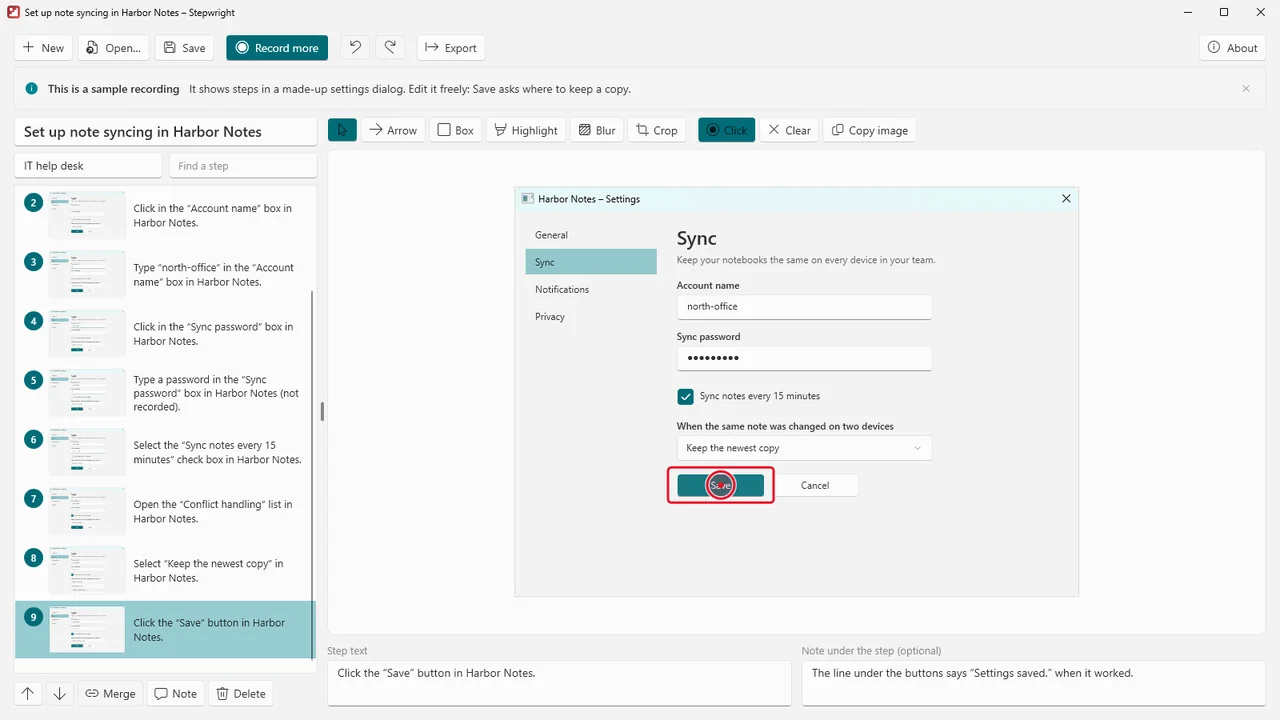
Press Record and do the task as usual. Every click becomes a numbered step with a screenshot of the window, the click marked on it, and a plain sentence made from the name and type of what you clicked.
Tidy the steps up, then export them as a Word document, a PDF, a single-file web page or Markdown. It is made for IT support staff, testers and anyone who writes instructions.
What Stepwright does
The right window every time
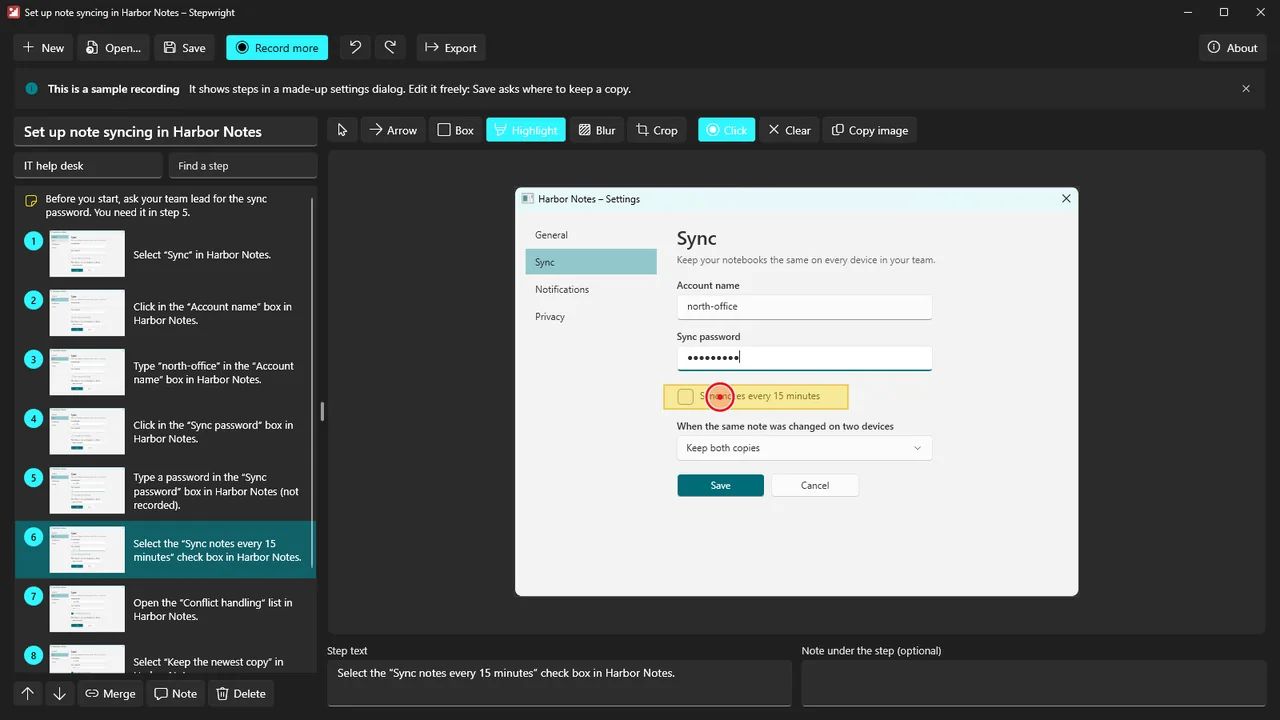
Each screenshot shows the window you clicked in, joined with its open menu or drop-down list, and the click is marked. You can also capture the whole monitor or an area around each click.
Private by default
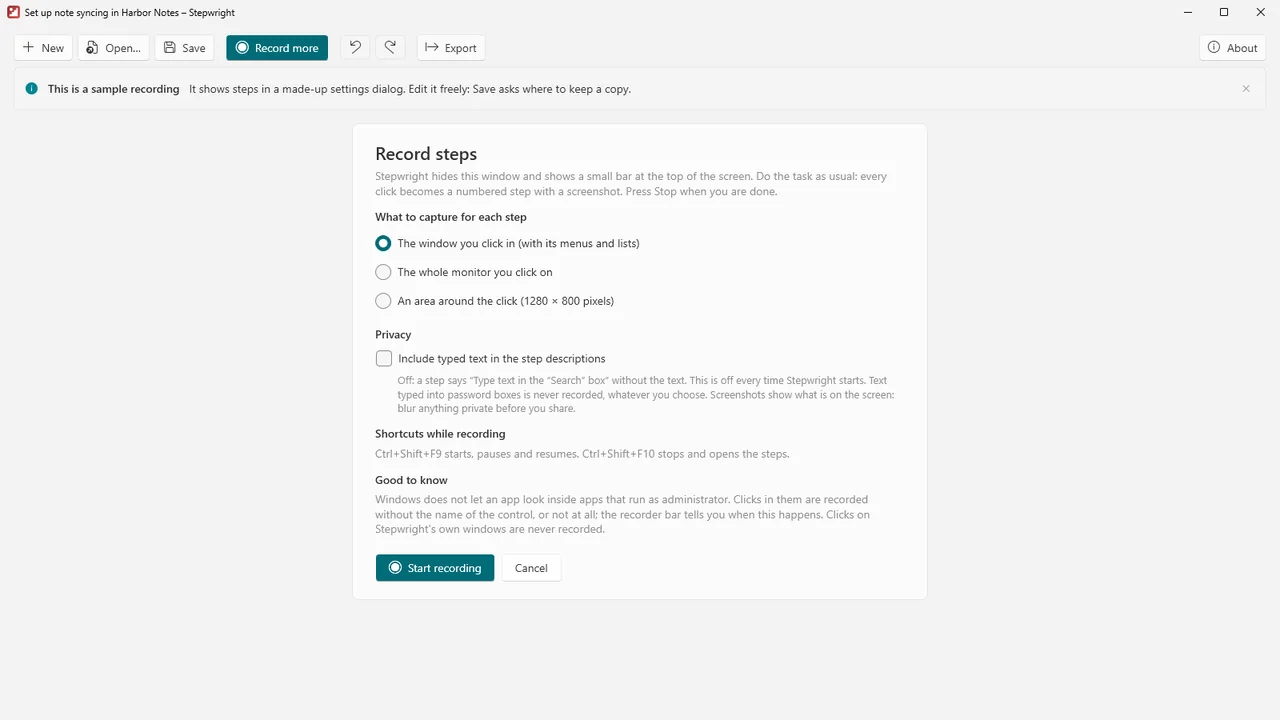
Text you type is left out of the steps unless you switch it on for a recording, and text typed into boxes marked as password fields is never recorded. The screenshot for a typing step is taken before the first key reaches the app.
Blur that really hides
The blur tool replaces the pixels of the area you choose, so the original is not kept in the saved recording or in exports.
A recorder bar out of the way
A small bar with Pause, Resume and Stop stays on top while you work and is left out of the screenshots. Start, pause or resume from anywhere with Ctrl+Shift+F9; stop with Ctrl+Shift+F10.
Tidy up
Reorder, delete and merge steps, rewrite any sentence, add notes between steps, crop, and draw arrows, boxes and highlights. Undo and redo cover every change.
Word, PDF, HTML, Markdown
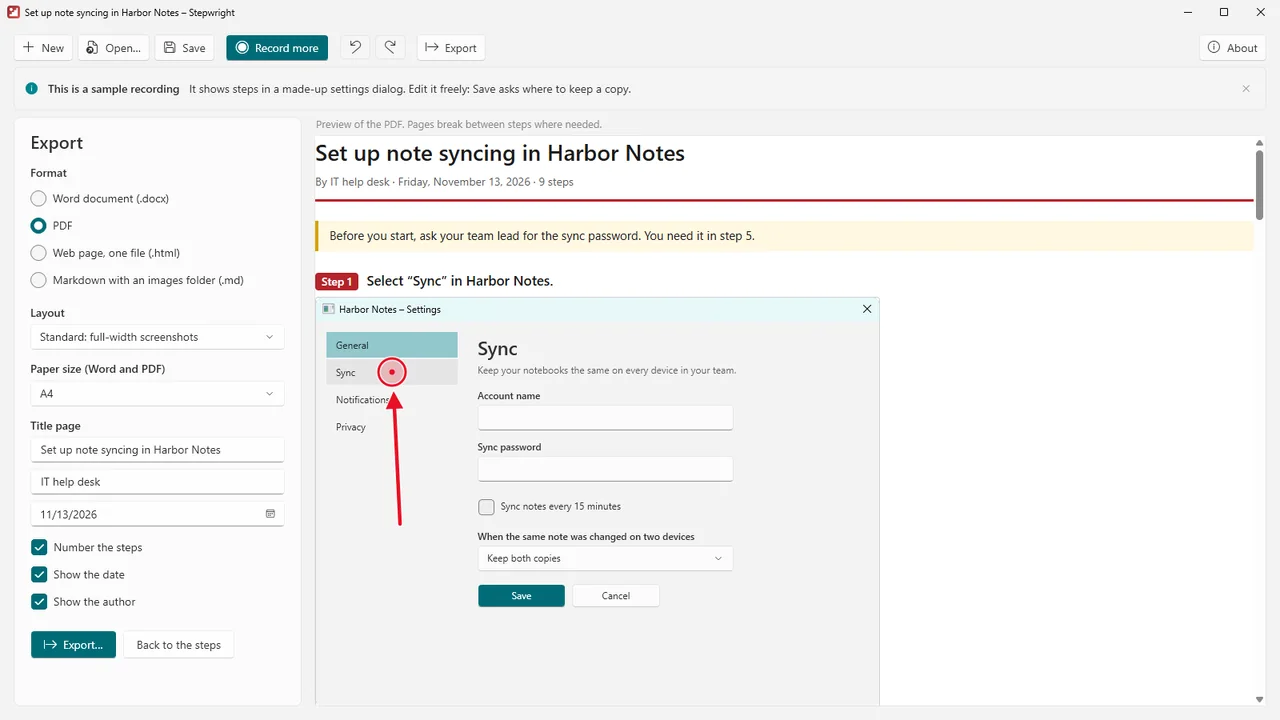
A title, author and date on the first page; numbered or unnumbered steps; A4 or Letter; a standard, compact or one-step-per-page layout; and a live preview.
Edit again later
Recordings are saved as .stepwright files that you can open and edit again. Stepwright suggests a title from the windows you worked in.
Offline
No account, no telemetry, no update check, no internet connection needed. Your recordings stay on your PC.
How it works
- Choose what to capture. Pick the window, the whole monitor or an area around each click, and whether typed text goes into the steps.
- Record. Press Record (Ctrl+R) and do the task as usual. Pause, resume and stop from the recorder bar.
- Tidy up and export. Edit the steps, blur what is private, then export (Ctrl+E) to Word, PDF, HTML or Markdown.
Screenshots
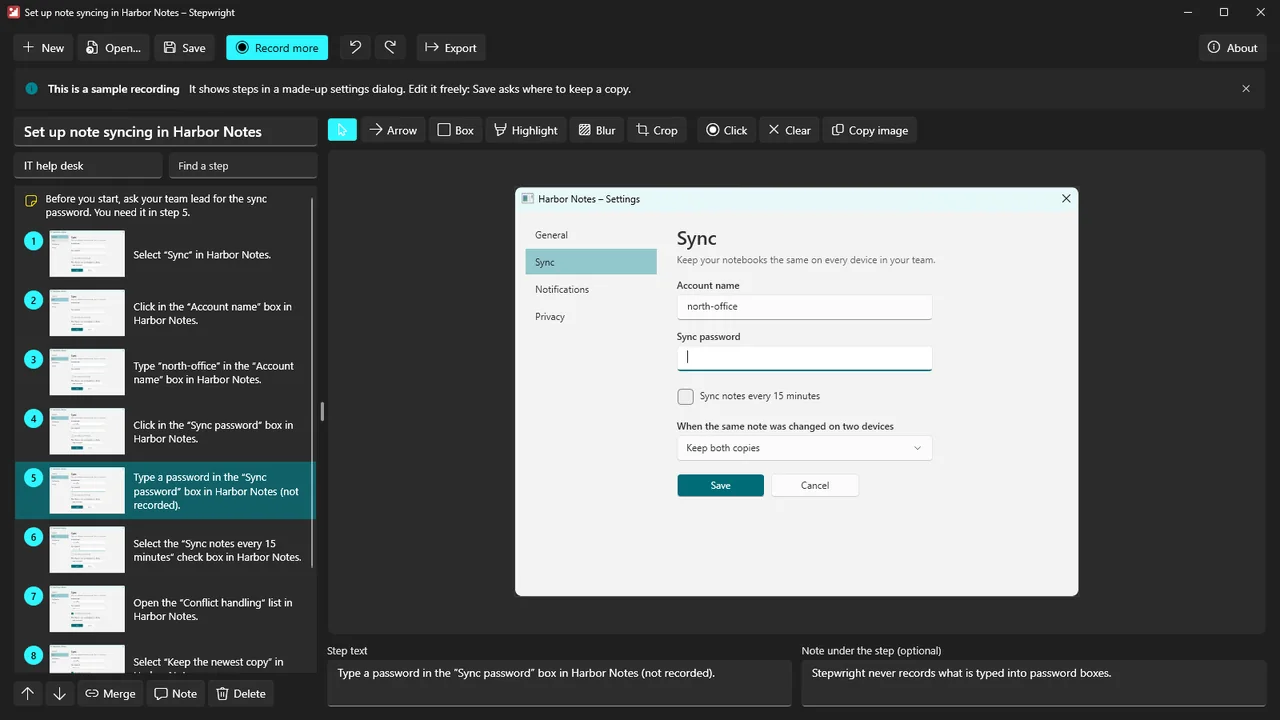
Pricing
Stepwright for Windows 10 and 11, 64-bit.
Good to know
- Windows does not let an app look inside apps that run as administrator. Clicks in such apps are recorded without the name of the control, or may not be recorded at all.
- Stepwright knows a password box by what the app reports about it. Text typed into a box that an app does not mark as a password field is treated like other typed text, which stays out of the steps unless you switch it on.
- Screenshots show what is on the screen. Check them, and blur anything private, before you share a document.
- PDF export and the export preview need the Microsoft Edge WebView2 Runtime, included in Windows 11 and most Windows 10 PCs.
Privacy
Stepwright works entirely on your PC. It does not connect to the internet, has no account, collects no telemetry or usage data and does not check for updates. While you record, it watches mouse clicks and key presses and takes screenshots only to build the steps of your recording; nothing is sent anywhere.
Typed text is not recorded unless you switch it on for a recording, and text typed into boxes marked as password fields is never recorded. Recordings and exports are saved only where you choose. Stepwright keeps its settings and a small error log (without screenshots or typed text) in your local app data folder.
Guides
FAQ
Does Stepwright record what I type?
Not unless you switch it on for a recording. Text typed into boxes marked as password fields is never recorded, whatever you choose; the step only says that a password was typed.
Is the recorder bar in the screenshots?
No. It stays on top while you work and is left out of every screenshot.
Can I hide private details in a screenshot?
Yes. The blur tool replaces the pixels of the area you choose, so the original is not kept in the saved recording or in the exports.
Which formats can I export?
Word (.docx), PDF, a single-file web page and Markdown with an images folder, with a standard, compact or one-step-per-page layout on A4 or Letter.
Does it work with apps running as administrator?
Only partly. Windows does not let an app look inside them, so clicks there are recorded without the control's name, or may not be recorded at all.
Related tools
Crashwright
Explains blue screens in plain words from the crash dumps and history Windows keeps: the likely driver, how sure that is and what to try. Offline, read-only.
Chatwright
Open the chat history you exported from Skype (.tar, messages.json or main.db) and read it like a chat, with photos. Search, statistics, PDF export. Offline.
More from Karelia Labs
Updated