
Ledgerwright: turn PDF bank and credit card statements into checked transactions for Excel, CSV, QBO, OFX and QIF
Your bank gives you statements as PDF, and your accounting software wants Excel, CSV, QBO, OFX or QIF. Copying the rows by hand is slow, and one misread digit is easy to miss.
For Windows 10 (version 2004 or later) and Windows 11, 64-bit. Works offline, with no account.
- Price
- $24.99 in the Microsoft Store
- Reads
- PDF statements with text or page images, and CSV files from online banking. Paper statements must be scanned first.
- Saves
- Excel (.xlsx), CSV, QBO, OFX, QFX, QIF and JSON
- Scanned statements
- Need a Windows language with text recognition installed (most Windows installations have one). Text PDFs do not.
- Windows
- Windows 10 version 2004 (build 19041) or later, or Windows 11, 64-bit (x64)
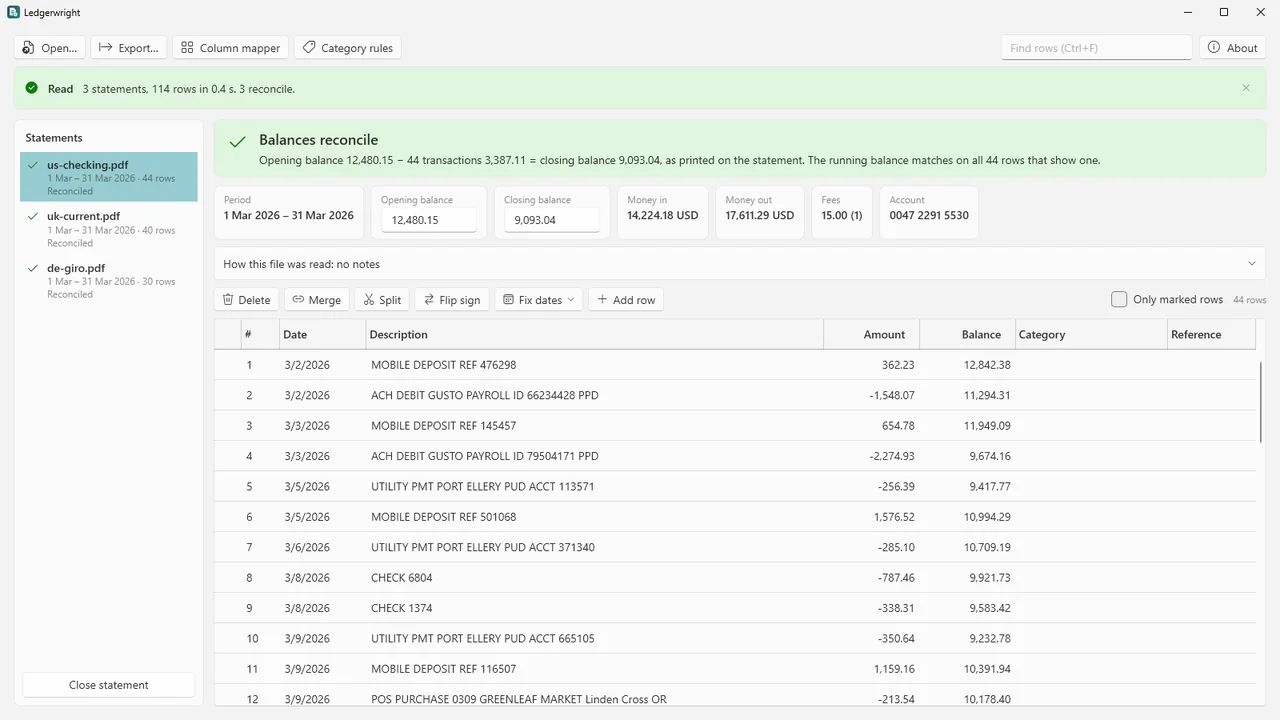
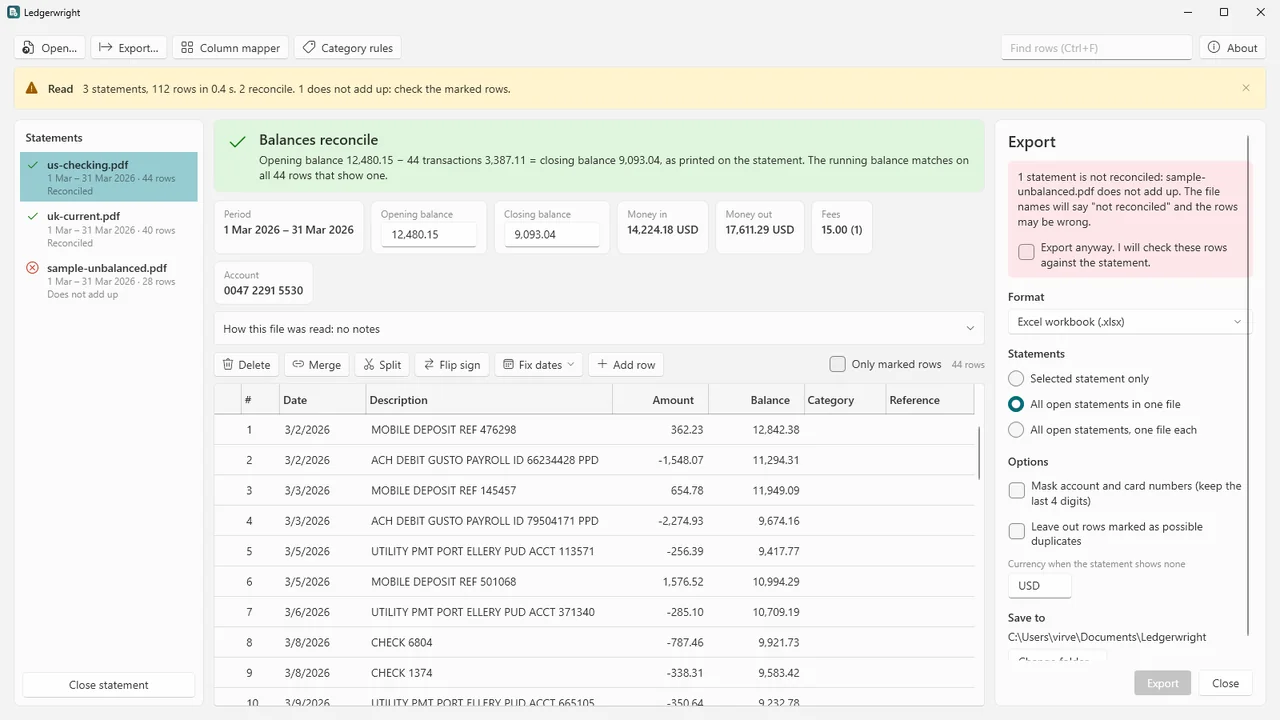
Ledgerwright reads the transactions from PDF bank and credit card statements on your own PC, scanned ones too, and checks every statement: the opening balance plus every transaction must equal the closing balance, and every running balance printed on the statement must match the rows above it.
You see every row before you export. Ledgerwright never presents a statement as correct when the check failed or could not run, and exported files of such statements say "not reconciled" in their name. It is made for bookkeepers and small-business owners.
What Ledgerwright does
A balance check on every statement
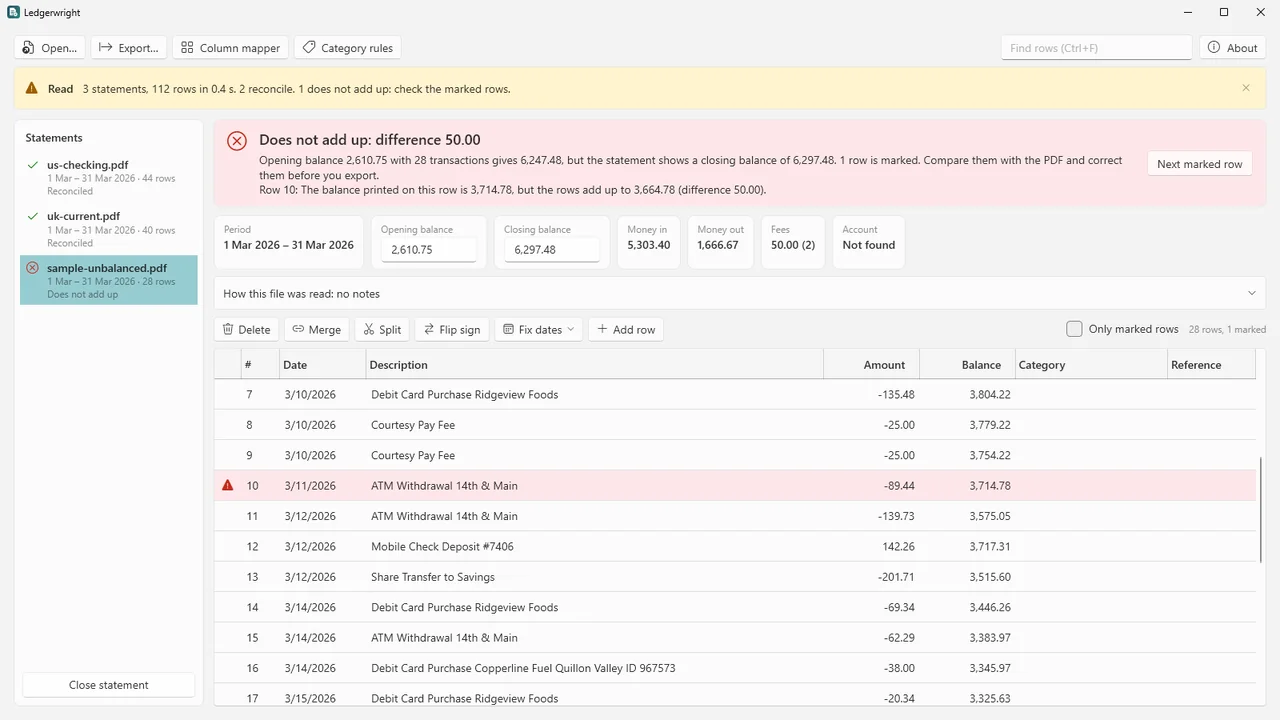
Ledgerwright finds the opening and closing balance and checks that the transactions add up. You see "Balances reconcile", "Does not add up" with the rows that break marked, or "Could not check" when the statement does not show its balances.
Every running balance
Each running balance printed on the statement is checked against the rows above it, so a missed row, a misread digit or a wrong sign shows up as a difference. The check runs again after every edit.
Review before you export
Edit any cell, delete, merge and split rows, flip a sign, fix the year or swap day and month.
Column mapper
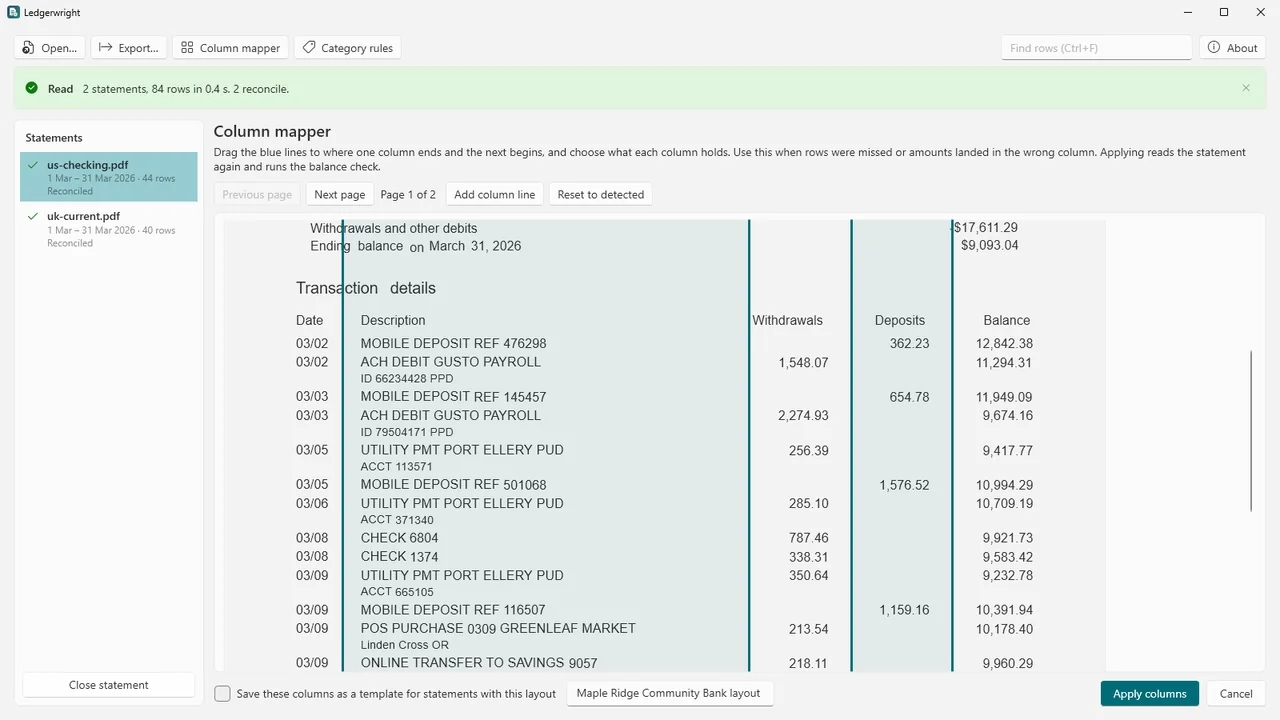
If the columns were found wrongly, drag the column boundaries yourself and save them as a template. Statements with the same layout use it next time.
Scanned statements
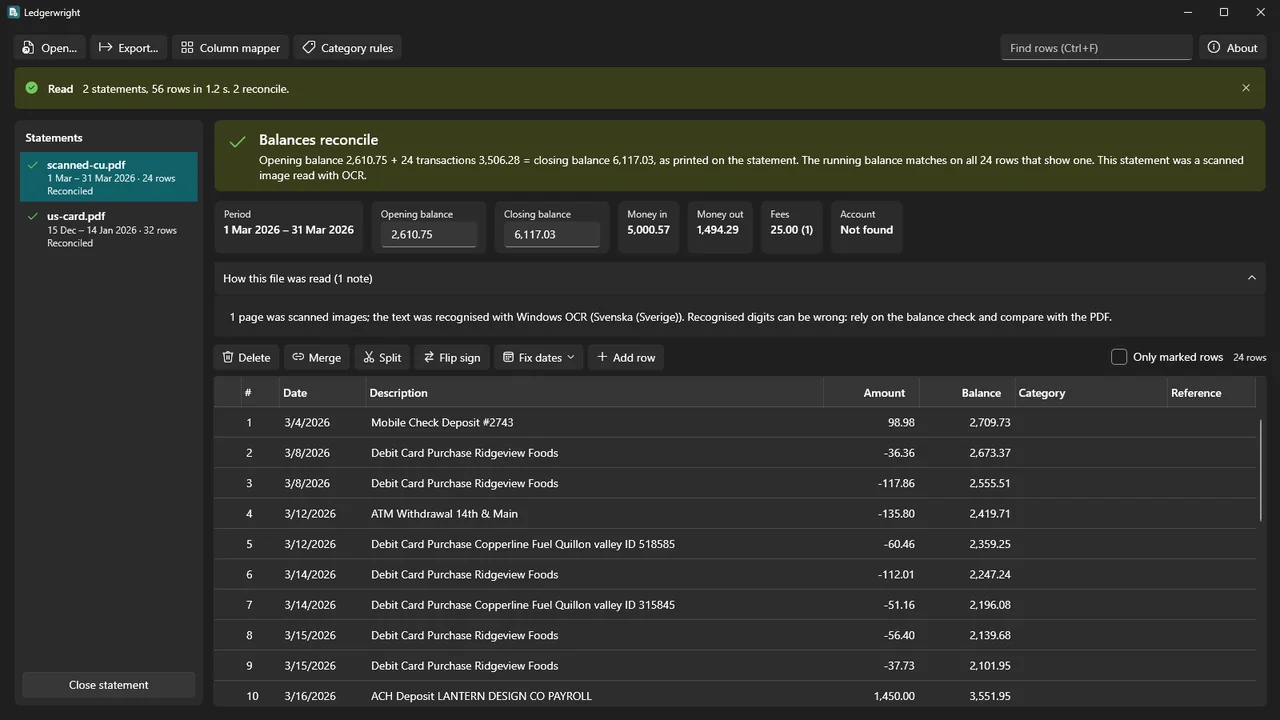
Pages that are only an image are read with the text recognition built into Windows, and go through the same balance check, which catches misread digits.
Many layouts
Dates in many formats, with the year taken from the statement period when it is not printed; decimal point or comma; separate money-in and money-out columns or one signed column; CR/DR and S/H markers, minus signs and parentheses; descriptions over several lines and tables over several pages. Column headings are recognised in English, German and French; otherwise the table is found from the shape of its rows.
Excel, CSV, QBO, OFX, QFX, QIF, JSON
Each row gets a stable transaction ID. CSV with your separator, decimal mark and date format, one amount column or debit and credit. Many statements into one workbook with a summary sheet, or one file each. Account and card numbers can be masked to the last four digits.
CSV in, too
CSV files from online banking can be read with a column picker and turned into QBO, OFX or QIF. Category rules ("description contains" → category), possible duplicates when statements overlap, and money in, money out and fees per statement.
How it works
- Open your statements. Open PDF statements, or drop them on the window. A password-protected PDF asks for its password, which is not kept.
- Check and review. Each statement shows the result of the balance check. Look over the rows, fix what needs fixing, and use the column mapper if the columns came out wrong.
- Export. Choose the format and save. A statement that is not reconciled needs your confirmation, and its file says so in the name.
Screenshots
Pricing
Ledgerwright for Windows 10 and 11, 64-bit.
Good to know
- Statement layouts differ from bank to bank and change over time, so no converter reads every statement right. That is why every row is shown for review and every statement is checked.
- Amounts must have two decimals: currencies without decimals, such as the yen, are not read.
- Without a column heading Ledgerwright knows and without balances on the page, which money column is which is a guess, noted on the statement, and the check cannot run.
- Credit card statements are recognised by words such as "minimum payment" or "new balance". A card statement without them is read with bank signs, and the balance check then fails.
- Of password-protected PDFs, only those with RC4 40-bit encryption were tested; AES-encrypted ones were not.
- QBO, QFX and OFX files are written in the OFX format and checked by reading them back with Ledgerwright's own reader, not by importing them into an accounting program. How a program imports them depends on that program and its version, so check the first import.
Privacy
Ledgerwright works entirely on your PC. It does not connect to the internet, has no account, collects no telemetry or usage data and does not check for updates. Statements are read on your PC, scanned pages are recognised by the text recognition built into Windows on your PC, and nothing is sent anywhere.
Passwords of protected PDFs are used only to open the file and are not stored. The original files are never changed; exports are saved only where you choose. Ledgerwright keeps its settings, your category rules, your saved column templates and a small error log (file names only, no statement contents) in your local app data folder.
Guides
FAQ
How does the balance check work?
Ledgerwright finds the opening and closing balance on the statement and checks that the opening balance plus every transaction equals the closing balance, and that every printed running balance matches the rows above it. If the statement does not show its balances, it says "Could not check", never that the statement is correct.
Can it read scanned statements?
Yes. Pages that are only a picture are read with the text recognition built into Windows, which needs a Windows language with text recognition installed. The balance check then catches misread digits.
Will QuickBooks or my accounting program import the QBO or OFX file?
Ledgerwright writes QBO, QFX and OFX in the OFX format and checks every export by reading it back. It was not tested by importing into accounting programs, and how a program imports these files depends on the program and its version, so check your first import.
What if my bank's layout is read wrongly?
You see every row before exporting and can edit, merge, split or delete rows. If the columns are wrong, drag them into place in the column mapper and save the layout as a template for the next statement.
My bank sends camt.053 or MT940 files. Do I need this?
Those are already data files, not PDFs. Camtwright turns them into Excel and CSV with a balance check.
Related tools
Camtwright
Turn camt.052/053/054 and MT940/MT942 bank statement files into Excel and CSV on your own PC, with every statement's balances checked to the cent. Offline.
Tablewright
Open Parquet, CSV, TSV and JSON Lines files with millions of rows on Windows. Sort, filter, see column statistics, query with SQL and export. Offline.
More from Karelia Labs
Updated