Enhanced Media Library alternative: keep your media categories on WordPress 7
Updated 2026-10-25
Is Enhanced Media Library still maintained?
Enhanced Media Library 2.9.4 was last updated in July 2024 and is tested up to WordPress 6.5. Its WordPress.org page now shows a warning that it has not been tested with the latest three major releases of WordPress and may no longer be maintained. More than 60,000 sites still have it active (checked October 25, 2026).
A plugin without updates keeps working until something around it changes: a new WordPress release, a new media dialog, a PHP upgrade. The safe time to move is before that happens, and with Enhanced Media Library the move can be very small.
Why there is nothing to migrate
Enhanced Media Library stores its media categories in a WordPress taxonomy called media_category. Shelfwright uses that same taxonomy for its folders. Your categories are not copied or converted: they simply show up as folders, with their subcategories and files.
- Categories become folders, subcategories become subfolders, and every file stays in the categories it had.
- Gallery shortcodes keep working:
[gallery media_category="flowers,mosses"],[gallery media_category="california+flowers"],type,limit,orderbyand[playlist]. - Extra taxonomies stay: taxonomies you created in Enhanced Media Library, and Categories or Tags you put on media, are registered again with the same names.
- Category pages keep their address, if you used them.
Switch in five steps
- Make a backup of the site, as before any plugin change.
- Install Shelfwright and activate it. Keep Enhanced Media Library active for now.
- Open Media → Library. Your categories are in the folder tree on the left. Open a few and check that the file counts match.
- If you use
[gallery media_category="..."]shortcodes, open one of those pages and check the gallery. - Deactivate Enhanced Media Library, so the two plugins do not both change the Media Library.
What changes in daily use
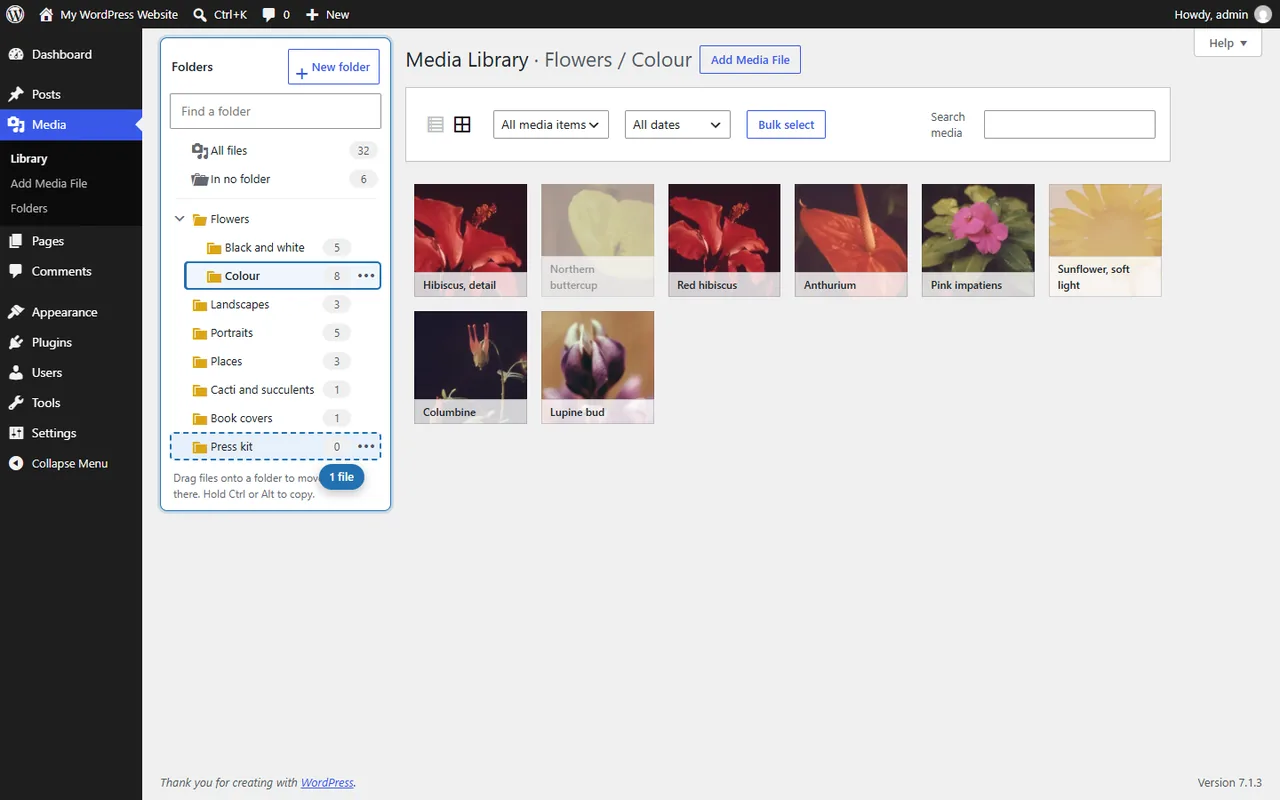
- Instead of a category filter, you get a folder tree beside the Media Library: open a folder to see its files, drag files onto a folder to move them, and upload straight into the open folder.
- A file can still be in several folders at once: drag with Ctrl or Alt held down, or tick folders in the attachment details.
- The editor's media dialogs get a folder filter next to the date filter.
- Shelfwright does not manage which file types may be uploaded. If you used Enhanced Media Library's MIME type settings, set allowed types another way before you remove it.
Going back is possible
Your categories stay in the database if you deactivate or delete Shelfwright, unless you tick the option to delete them in its settings first. You can reactivate Enhanced Media Library at any time and find them where they were.
Sorting what never got a category
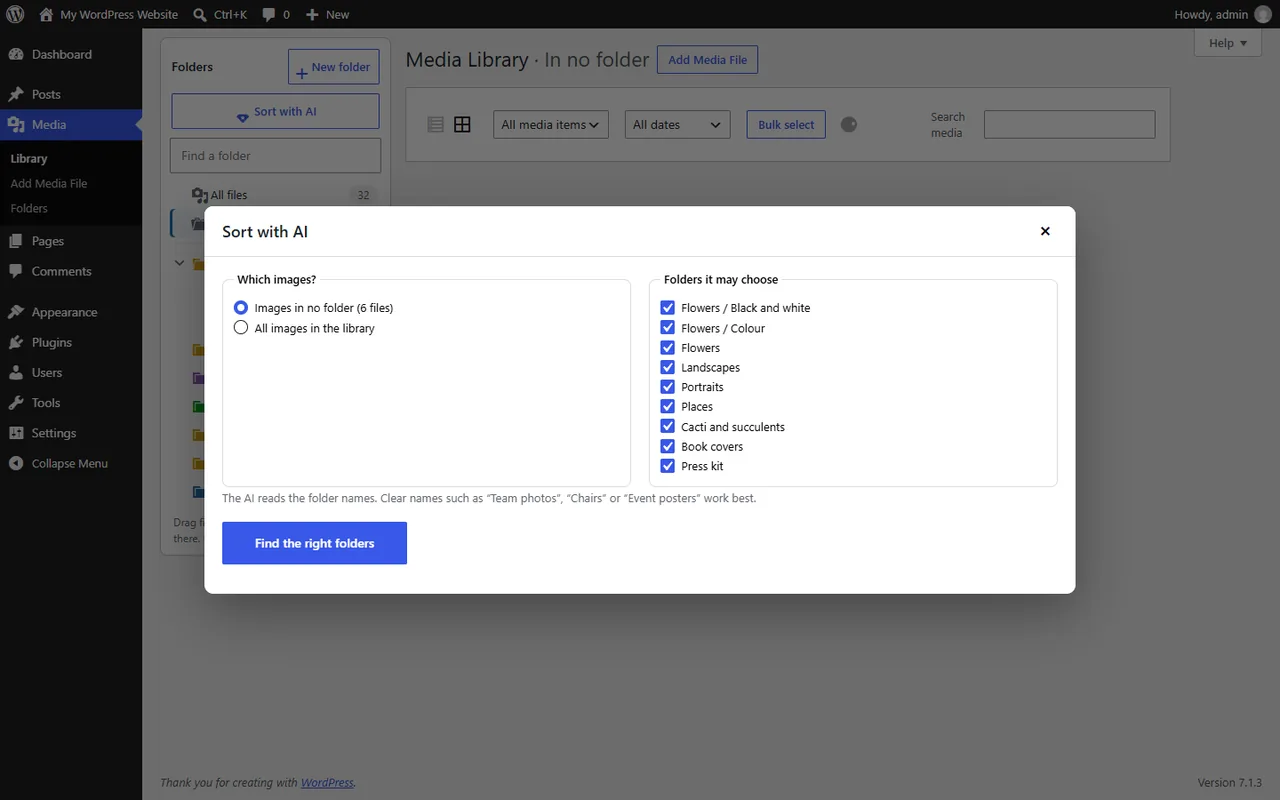
Most libraries have a pile of files in no category. Shelfwright Pro adds Sort with AI: an image model compares each image with your folder names in your own browser and suggests a folder. You check every suggestion before anything moves, and new uploads can be sorted automatically.
FAQ
Do I need to import anything from Enhanced Media Library?
No. Shelfwright uses the same media_category taxonomy, so your categories are already there when it is active.
Will my gallery shortcodes break?
No. [gallery media_category="..."] with type, limit and orderby, and [playlist], work the same way.
Can I run both plugins at once?
Only while you check the folder tree. After that, deactivate Enhanced Media Library so the two do not both change the Media Library.
Is Shelfwright free?
The free plugin, with unlimited folders, is in review at WordPress.org. Shelfwright Pro, with AI sorting, folder colours and ZIP download, is on sale now from $49 a year or $49 once.
More guides
How to move WordPress media folders from FileBird or Real Media Library
Shelfwright finds the folders of eight other folder plugins and imports them with one click, subfolders and all. The other plugin's data is only read, so you can try it and go back.
Read the guide →Fix Paymenter after upgrading to Pterodactyl 2.0: "api/application/nests could not be found"
Pterodactyl 2.0 removed the nest endpoints that Paymenter's built-in extension calls. Switch to a 2.0-aware extension with one command; products and services stay.
Read the guide →Solar2D and Google Play's 16 KB page size rule: find the library that fails
Apps targeting Android 15+ must support 16 KB memory pages. Check every 64-bit library in your build, find the plugin that ships each 4 KB-aligned one, and update or remove it.
Read the guide →