
How to bulk edit entries in Statamic
Updated 2026-10-20
What Statamic does out of the box
In an entry listing you can select many entries and run a bulk action, such as publishing, unpublishing or deleting them. Changing a field, like a meta description on 200 pages or a price on 80 products, means opening each entry and saving it.
Option 1: edit the content files
On a flat-file site, each entry is a Markdown file with YAML front matter in content/collections/<collection>/. A project-wide search and replace in a code editor can change plain text across many entries at once.
- Fast for simple text changes.
- Skips your blueprint's validation, so a typo in YAML or a wrong value type breaks the entry.
- Not possible with the Eloquent driver, where entries are database rows.
Run php please stache:refresh afterwards so Statamic picks the changes up.
Option 2: a script
Statamic's PHP API can change entries in bulk, for example in php artisan tinker:
use Statamic\Facades\Entry;

Entry::query()
    ->where('collection', 'products')
    ->get()
    ->each(fn ($entry) => $entry->set('in_stock', true)->save());
This works on flat files and the Eloquent driver, but it is a job for a developer, and like editing files it does not run the blueprint's validation rules.
Option 3: edit the collection as a spreadsheet
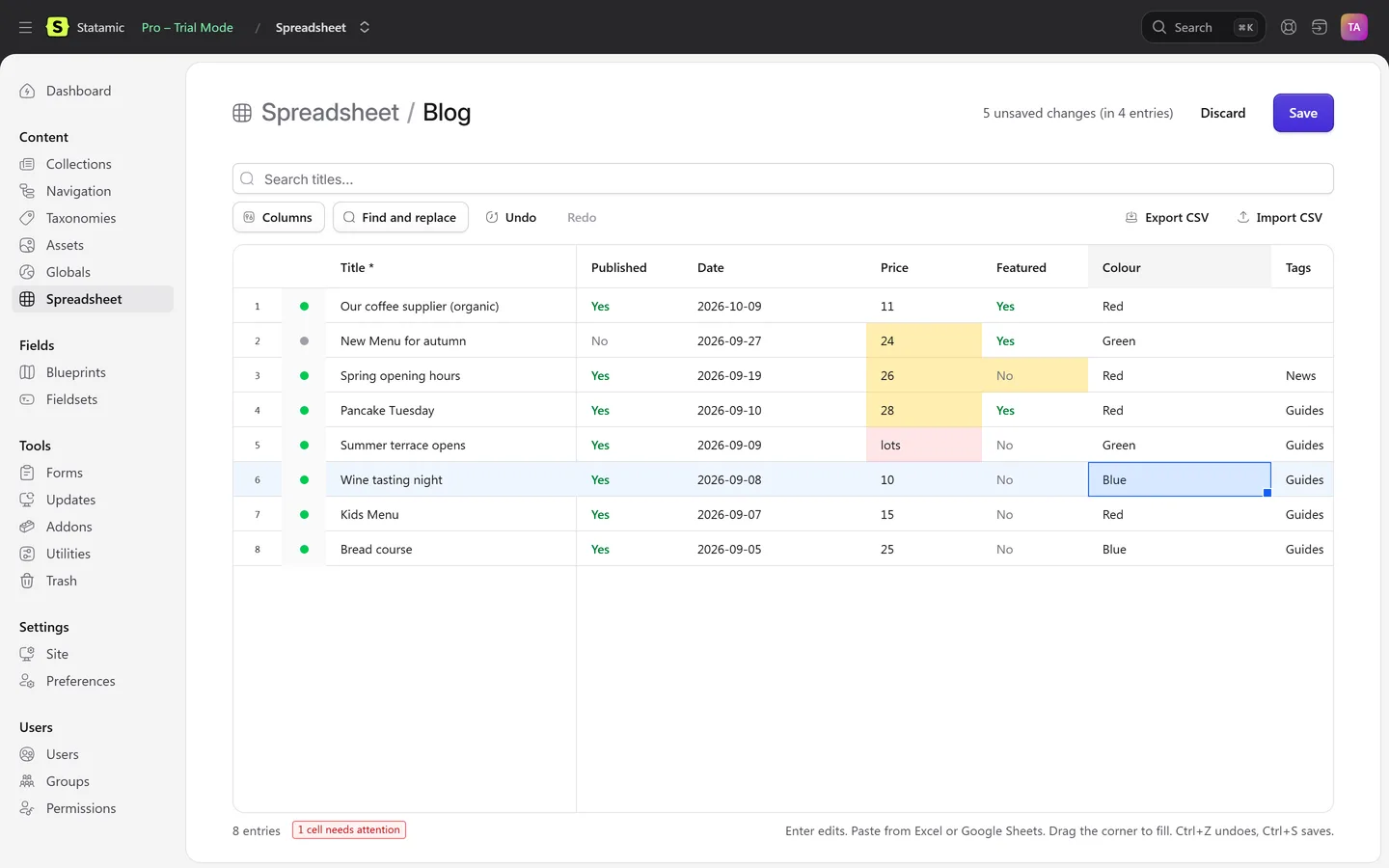
Karelia Spreadsheet opens a collection, or a selection of entries, as a spreadsheet inside the Control Panel. Editors can do it themselves, and every entry is saved the way the publish form saves it.
- Install it in your site's folder:
composer require karelialabs/statamic-spreadsheet. - Open Content → Spreadsheet and pick a collection, or select entries in any listing and choose Edit in Spreadsheet.
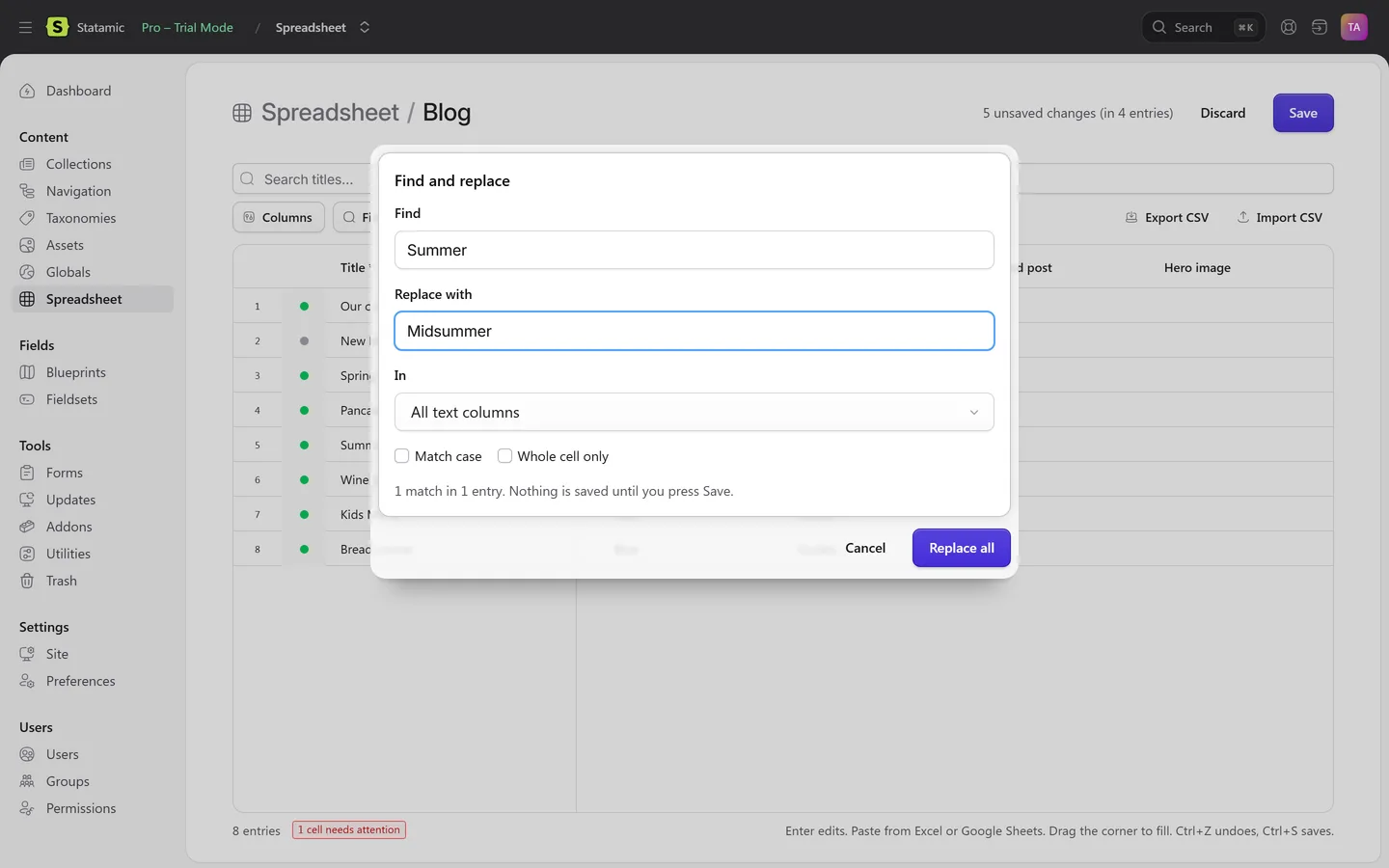
- Type in the cells, paste a block from Excel or Google Sheets, drag the fill handle, or use Find and replace.
- Check the highlighted changes. Values that cannot be right are marked red and never sent.
- Press Save. Each entry goes through its blueprint's validation, and errors come back on the exact cell.
Round-trip through CSV
- In the sheet, choose Export CSV.
- Edit the file in Excel, Google Sheets or anything else.
- Choose Import CSV. Rows are matched by ID or slug, and the imported values show up as unsaved changes.
- Check them, then press Save.
Nested fields such as Bard, Replicator and Grid are shown read-only in the sheet; edit those on the entry page.
FAQ
Can I bulk edit fields in Statamic without an addon?
Yes, by editing the content files on a flat-file site or with a script using Statamic's PHP API. Both skip the blueprint's validation, so check the result.
Can I import a CSV into existing Statamic entries?
With Karelia Spreadsheet, yes: rows are matched by ID or slug and shown as unsaved changes before you save.
Will bulk changes create revisions?
Saving from the spreadsheet goes through Statamic's revisions where they are on, as a working copy. Scripts and file edits do not.
More guides
Fix Paymenter after upgrading to Pterodactyl 2.0: "api/application/nests could not be found"
Pterodactyl 2.0 removed the nest endpoints that Paymenter's built-in extension calls. Switch to a 2.0-aware extension with one command; products and services stay.
Read the guide →Solar2D and Google Play's 16 KB page size rule: find the library that fails
Apps targeting Android 15+ must support 16 KB memory pages. Check every 64-bit library in your build, find the plugin that ships each 4 KB-aligned one, and update or remove it.
Read the guide →How to add captions to WordPress videos without per-minute fees
Generate captions for a Media Library video with Whisper in your own browser, check them next to a live preview, and they appear in the core Video block with a clickable transcript.
Read the guide →