
How to export Jira issues to Word or PDF with your own Word template
Updated
What Jira does by itself
Jira Cloud can export a single issue without any app. Open the issue's ••• menu and look for the export options; Word is one of them. It costs nothing and is quick for one issue. You cannot choose the layout, though, and Atlassian's public request tracker has requests to include images (JRACLOUD-10156), to give more control over the export (JRACLOUD-12813) and to show the history (JRACLOUD-62918).
| Free way | What you get | What it leaves undone |
|---|---|---|
| The issue's own Word export | A Word file of one issue | Jira's layout, not your template or logo. See the requests above. |
| Print the issue in the browser and save it as PDF | A PDF of what the screen shows | The browser decides the layout and the page breaks. One issue at a time. |
| Export a search to CSV, then use Word's mail merge | Your own Word layout, one section per issue | Only flat values: no lists of subtasks, comments or work logs, and no formatting from the description. Every run is by hand, and nothing is attached back to Jira. |
If one issue in Jira's layout is enough, stop here. If the document goes to a customer or must look the same every time, you need a template.
With the Document Generator: your own template
Export to Word, PDF & Excel: Document Generator for Jira fills a Word template that you write yourself and attaches the result to the issue. It runs on Atlassian: no outside servers and no PDF conversion service.
1. Write the template in Word
Write the document as you always do, with your layout, logo, header and footer. Wherever a value from Jira belongs, type a tag in curly braces:
Issue {issue.key}: {issue.summary}
Status {issue.status.name}, assigned to {issue.assignee.displayName | default:"nobody yet"}
Story points: {issue.fieldsByName["Story Points"]}

{#issue.subtasks}
{key}  {summary}  ({status.name})
{/}
Custom fields work by id or by name. A block such as {#issue.subtasks} … {/} repeats for every subtask, and the same works for comments, work logs, linked issues and history. {@issue.description} brings in the description with its headings, lists and tables. Save the file as .docx.
2. Upload it
- As a Jira administrator, open Jira settings > Apps > Document templates and choose Add a template.
- Upload the .docx file. The app checks every tag: a broken one, such as a block that is opened and never closed, is named and nothing is saved.
- Open Details to see which tags the template reads.
3. Generate from an issue
- Open the issue, open its ••• menu and choose Generate document….
- Pick the template and choose Word, PDF or both.
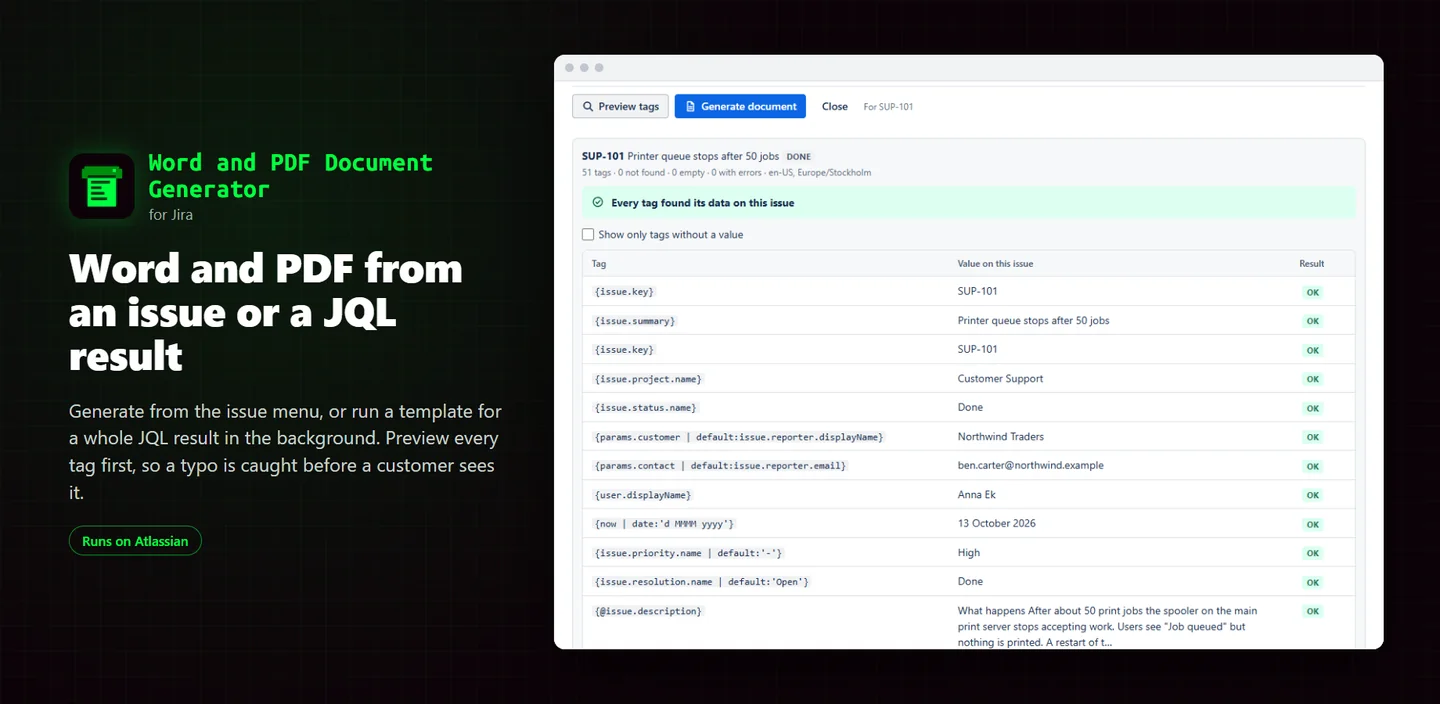
- Choose Preview tags. It lists every tag with the value it gets for this issue and marks the tags that found nothing, so a typo is caught before a customer sees it.
- Choose Generate document. The files are attached to the issue and can be downloaded from the dialog.
Many issues at once, or automatically
- A JQL result: on Apps > Documents > Bulk, make one document per issue, attached to each, or one combined document such as release notes for a fix version. A job handles up to 5,000 issues and can be stopped and resumed.
- Jira Automation: add the action Generate document from template to a rule, for example when an issue is transitioned. The document is attached to the issue.
- Excel: Apps > Documents > Spreadsheet exports a JQL result with the standard and custom fields you choose, in your order.
Good to know
- The PDF is made from the Word file inside Atlassian. It is a clean copy, not a pixel-perfect one: text boxes, shapes, footnotes and columns are left out of the PDF. The Word file keeps them.
- Templates are written in Word. There is no template editor in Jira, and Jira administrators manage the template library.
- A template can be up to 10 MB. Macro-enabled files, old .doc files and password-protected files are refused.
- Sample templates, such as an issue report and release notes from a JQL result, are included to start from.
- The app works as the person using it, so Jira permissions decide what it reads and where it may attach files.
Microsoft Word and Excel are trademarks of the Microsoft group of companies. The app reads and writes their file formats and is not affiliated with Microsoft.
FAQ
Can Jira export an issue to Word without an app?
Yes, one issue at a time and in Jira's own layout. You cannot use your own template, and Atlassian's tracker has requests about images, more control and the history in that export.
Do I need Word to write templates?
You need Word or another editor that saves .docx files.
Can I make one document from many issues?
Yes. Run a template for a JQL result on the Bulk tab: one document per issue, or one combined document, for up to 5,000 issues.
What does it cost?
It is free for up to 10 users. Larger sites see the price on the Atlassian Marketplace and can evaluate the app for 30 days, the Marketplace default for Cloud apps.
More guides
Fix Paymenter after upgrading to Pterodactyl 2.0: "api/application/nests could not be found"
Pterodactyl 2.0 removed the nest endpoints that Paymenter's built-in extension calls. Switch to a 2.0-aware extension with one command; products and services stay.
Read the guide →How to keep Paymenter stock in line with free Pterodactyl node capacity
Paymenter's stock only changes when you change it. Count what still fits on each node by the panel's own rule (memory, disk, overallocation and free ports), or let Auto Stock set every product's stock from it on Paymenter's scheduler.
Read the guide →How to offer free trial game servers in Paymenter, one per person
Paymenter 1.5.9 has no trials of its own. Make a separate trial product with a free plan, allow one trial per person at checkout, end it with Paymenter's own suspend and terminate, and let clients upgrade on the same server.
Read the guide →