
How to add audio description to WordPress videos (WCAG 1.2.5)
Updated 2026-10-25
What audio description is
Audio description tells blind and low-vision viewers what is shown but not said: the slide with the new opening hours, the name under the speaker, the map, the person who walks in. The descriptions are spoken in the natural pauses of the speech, so they never cover what is said.
When it is required
WCAG 2.1 success criterion 1.2.5 asks for audio description of prerecorded video at Level AA. Captions alone do not meet it. Level AA is what the main rules point to:
- ADA Title II (US): state and local governments, public schools, colleges and universities must meet WCAG 2.1 AA from April 26, 2027 (50,000 people or more) or April 26, 2028 (smaller entities and special districts). Source: ada.gov.
- European Accessibility Act: has applied since June 28, 2025, and the EU Web Accessibility Directive covers public-sector websites, both through EN 301 549.
- Section 508: US federal agencies follow WCAG 2.0 AA, which includes the same success criterion.
Dates checked October 25, 2026. This is background, not legal advice.
Write the descriptions in WordPress
- Install Describewright. Under Media → Audio description → Settings, choose an AI service that can look at images (OpenAI, Gemini, Claude, OpenRouter, a local model or WordPress AI) and click Test the connection.
- Optional: write notes for the AI on the video, such as the speaker's name and role. They are used in every description.
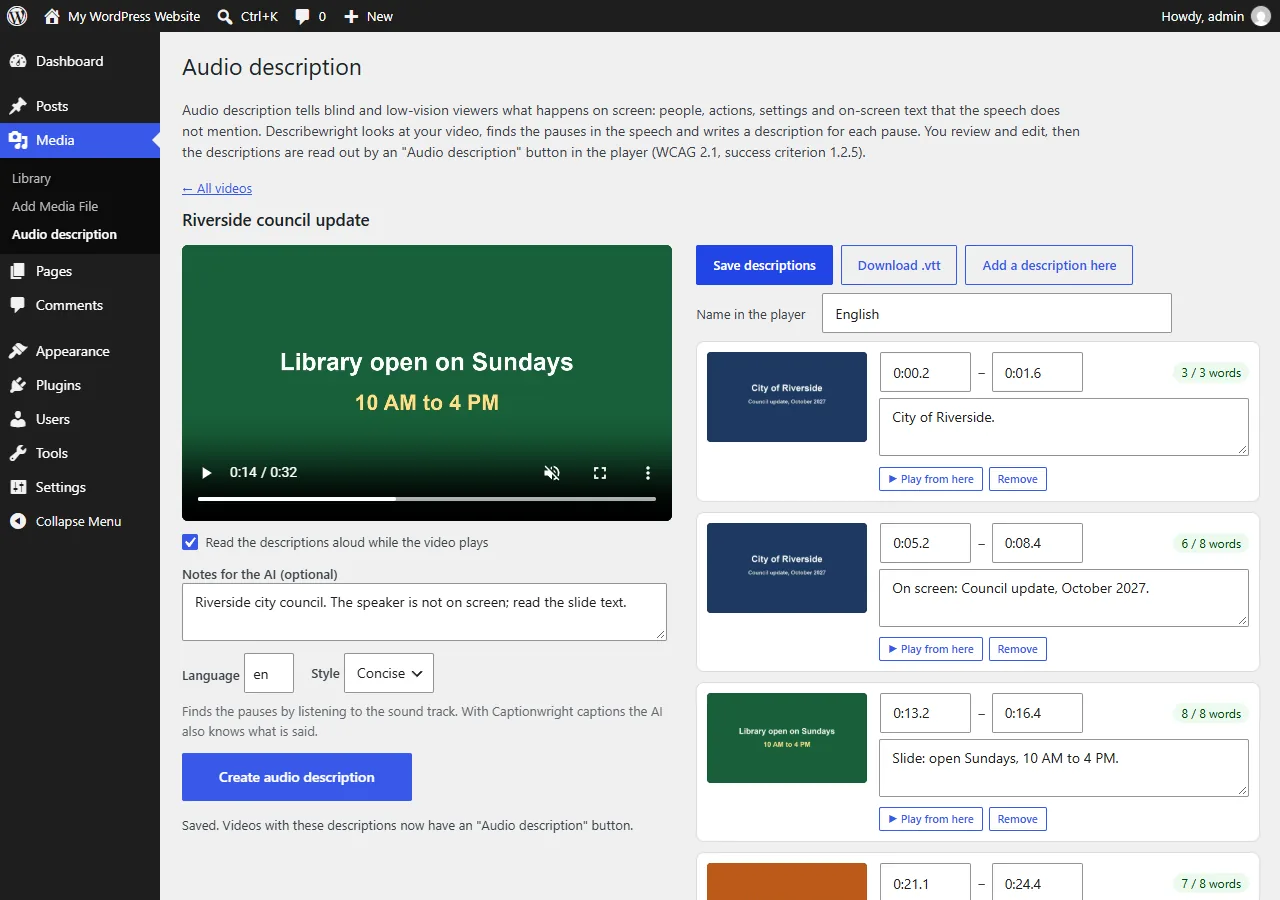
- Click Describe next to the video. Describewright finds the pauses in the speech, spots scene changes and sends still frames from those moments to the AI, which writes one description per pause, sized to fit it.
- Check each description next to the playing video. Fix names and wording, adjust start and end times, and save.
What viewers get
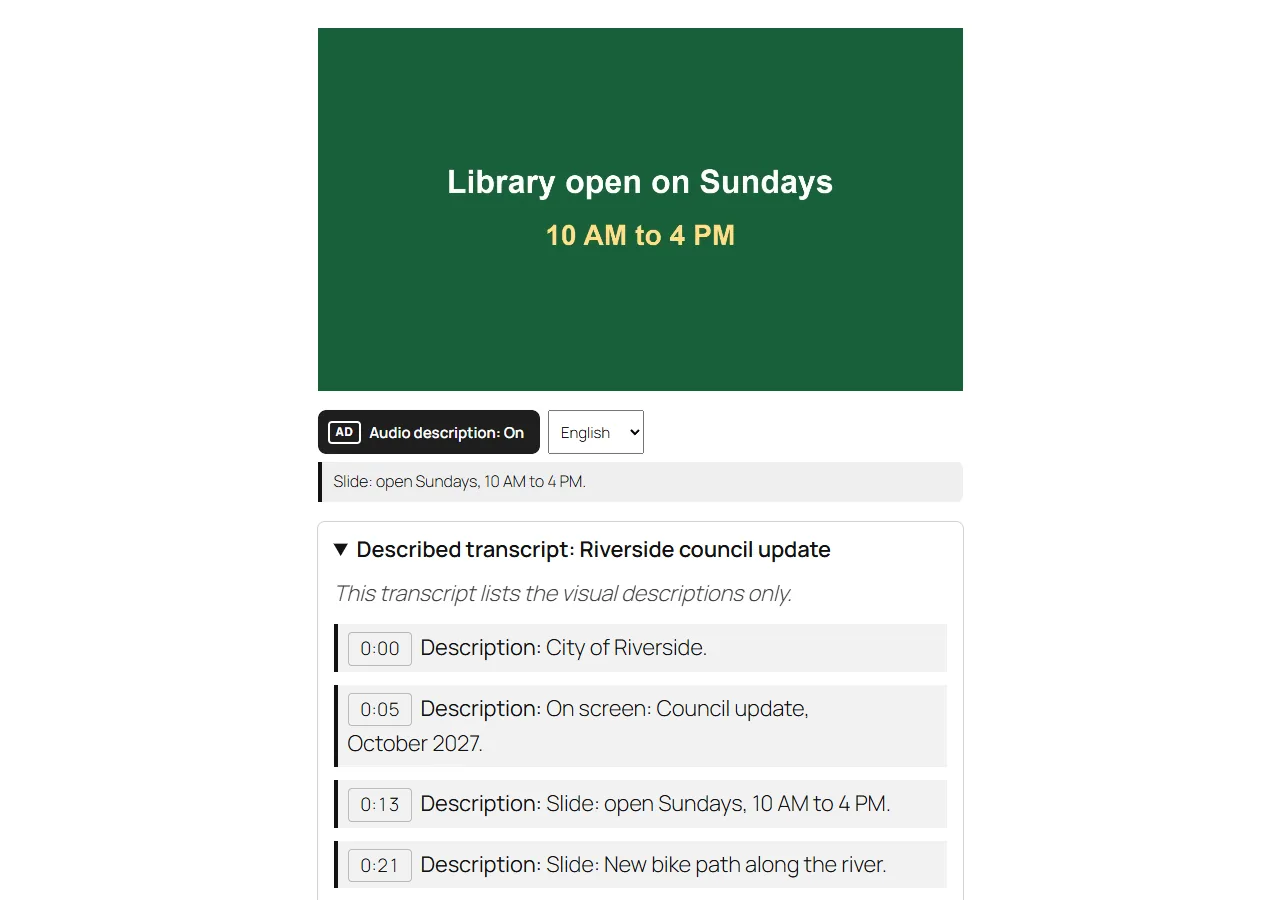
The video gets an Audio description button in the core Video block and the [video] shortcode. Viewers turn it on and hear each description at the right moment, read by the browser's built-in voice and announced to screen readers. The current description also appears as text below the player.
Add the Described transcript block, or [describewright_transcript id="123"], for the speech and the descriptions as text in time order. That covers WCAG 1.2.3 and 1.2.8 as well.
Tips for good descriptions
- Read every description before saving. No automatic description is perfect, and WCAG asks for the important visual information.
- Use notes for the AI for names, places and context it cannot see.
- Add captions with Captionwright first: the pauses are then found from the captions, and the AI knows what is said around each one.
- When a video has almost no pauses, lower the shortest pause in the settings, or use extended audio description in Pro, which pauses the player while a description is read (WCAG 1.2.7).
What it costs
Describewright sends still frames, not video, so a low-cost vision model is enough, and you pay the AI service directly. Our estimate from the published prices in October 2026 is a few cents for a 10-minute video. Describewright Pro adds a queue for the whole library, extended audio description and translation into 30 languages.
FAQ
Do captions count as audio description?
No. Captions make the speech available to people who cannot hear it. Audio description makes the picture available to people who cannot see it. WCAG 2.1 AA asks for both on prerecorded video.
Is the video uploaded to the AI service?
No, only still frames (JPEG, up to 512 pixels wide), the title, your notes, the pauses and, with Captionwright captions, the words spoken around each pause. They go from your server to the service you chose.
Which AI model works?
Any model that can look at images. Test the connection checks that the model really sees images.
More guides
Fix Paymenter after upgrading to Pterodactyl 2.0: "api/application/nests could not be found"
Pterodactyl 2.0 removed the nest endpoints that Paymenter's built-in extension calls. Switch to a 2.0-aware extension with one command; products and services stay.
Read the guide →Solar2D and Google Play's 16 KB page size rule: find the library that fails
Apps targeting Android 15+ must support 16 KB memory pages. Check every 64-bit library in your build, find the plugin that ships each 4 KB-aligned one, and update or remove it.
Read the guide →How to add captions to WordPress videos without per-minute fees
Generate captions for a Media Library video with Whisper in your own browser, check them next to a live preview, and they appear in the core Video block with a clickable transcript.
Read the guide →